
Welcome to the Zignyl Team App - Employee Guide. This guide shows you some of the common features of the Zignyl Team App. If you have any issues with activation or login, please visit this article here instead.
1. Navigating the App - Icons and Account Settings
The app is divided into two parts, the first being the three main tabs at the bottom of the screen:
-
Home (House Icon): Your personal dashboard. It shows a list of your upcoming shifts. From here, you can also access the full team schedule.
-
Calendar (Calendar Icon): A full month-view of your personal schedule. Dots indicate scheduled shifts; triangles indicate time-off requests.
-
zChat (Bubble Icon): The team messaging center.
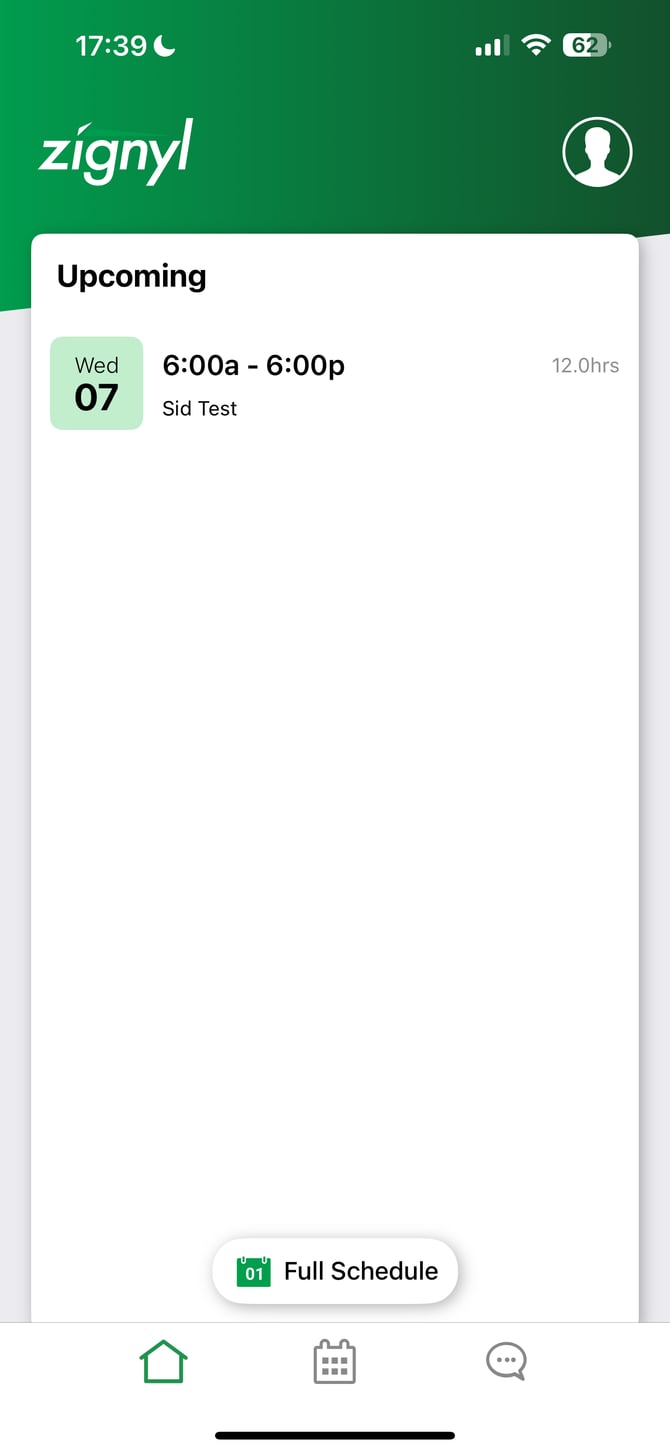
At the top of the app screen on the upper right corner, your Profile Picture will show the second core part of the Zignyl Team App. This is your control panel for account settings.
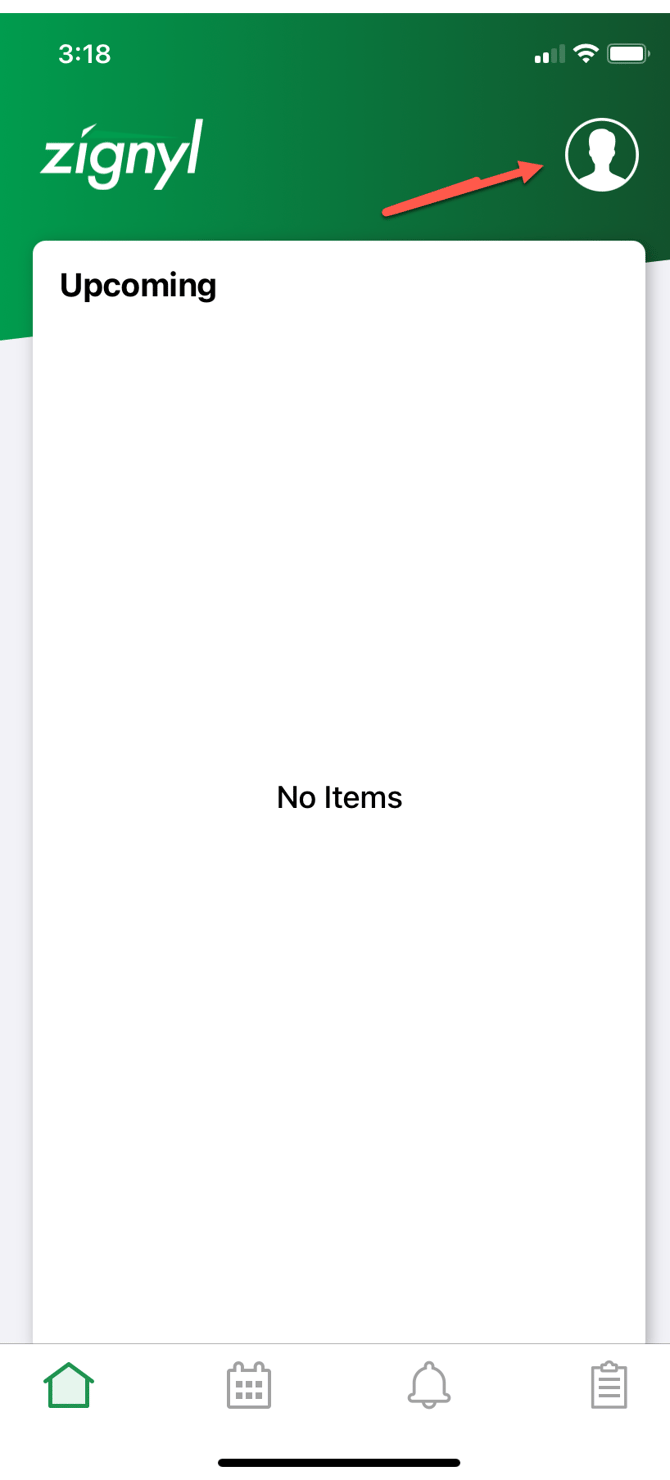
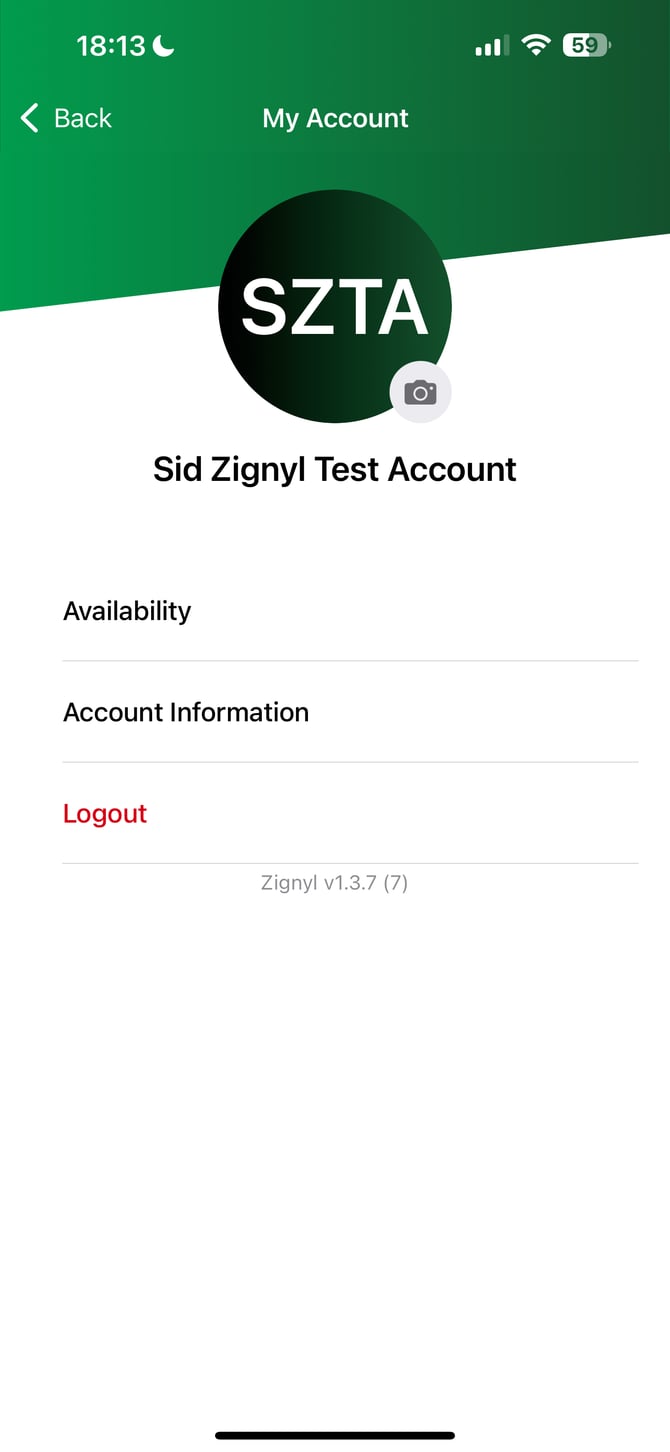
Clicking the profile picture icon will display the options as shown below:
-
Availability: Setting what days and hours you're able to work.
-
Account Information: A detailed submenu that includes setting/editing Contact Information, Locations, Time Punches, Notes & Documents
-
Logout
The following sections of this article will go into further depth on both primary parts of the Zignyl Team App and how to get the best use of them!
2. Checking Your Schedule
You have three ways to view schedules in the app:
A. Your Upcoming Shifts (List View) Tap the Home tab to see a simple scrolling list of your specific shift times (e.g., "8:00a - 4:00p") and locations.
B. Your Full Month (Calendar View) Tap the Calendar tab to see your schedule in a monthly view. Tap any specific day to see the shift details.
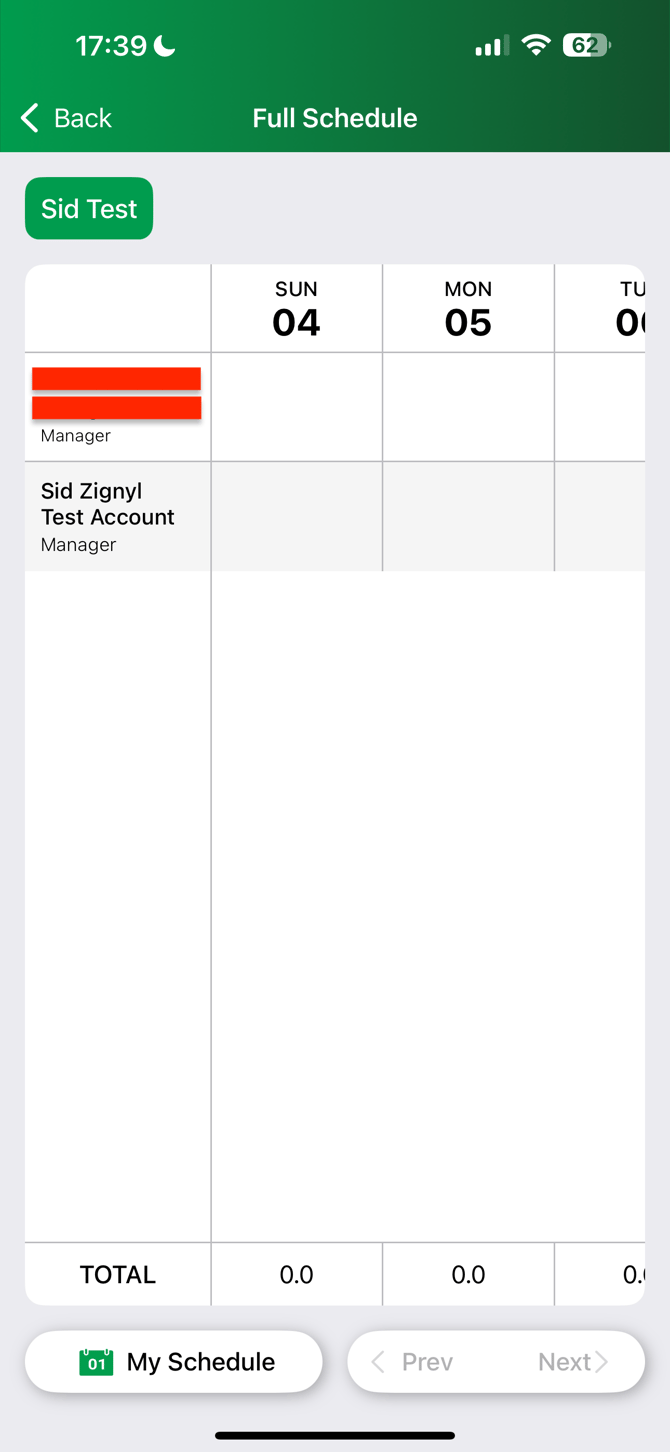
C. The Full Team Schedule (Grid View) Want to see who else is working?
-
Go to the Home tab.
-
Tap the "Full Schedule" button at the bottom of the screen.
-
This opens a grid view where you can see the schedule for the entire team.
3. Requesting Time Off
There are two ways to request time off.
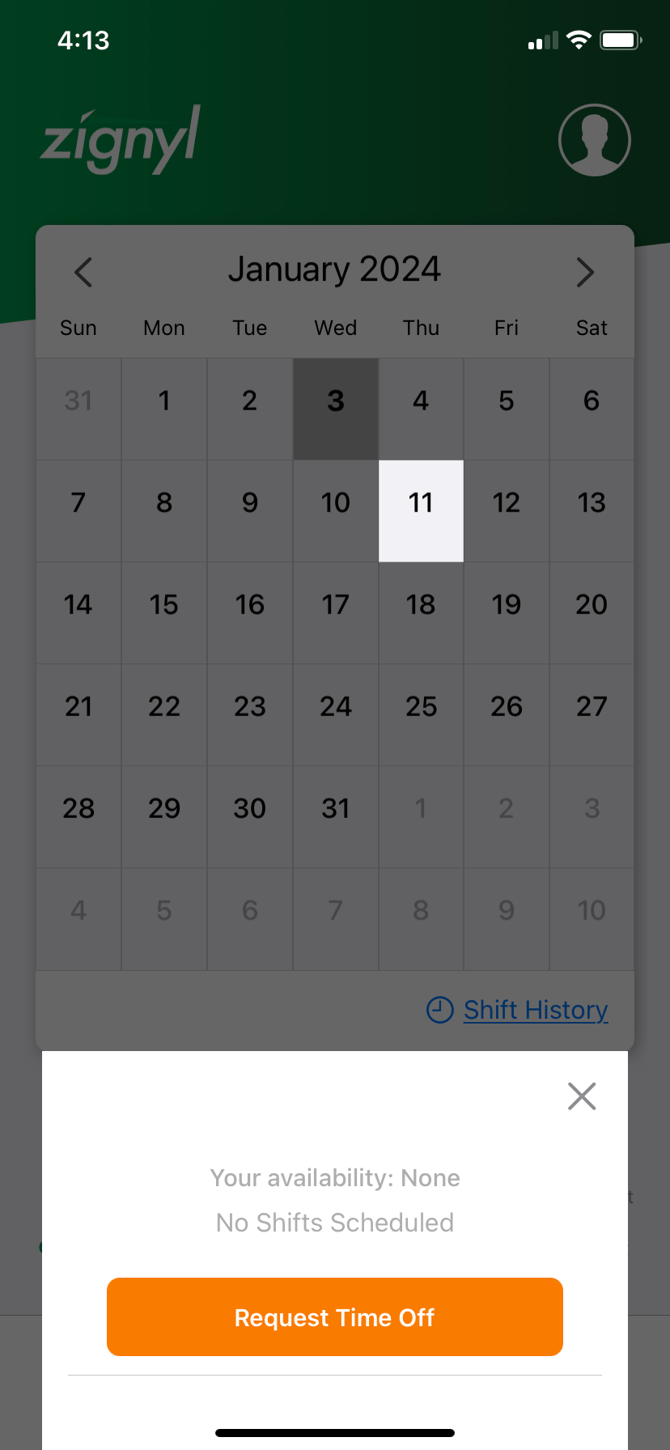
Method A: From the Calendar (Fastest)
-
Tap the Calendar tab.
-
Tap the future Date you want off.
-
Tap the prompt at the bottom: "Select a future day to request time off."
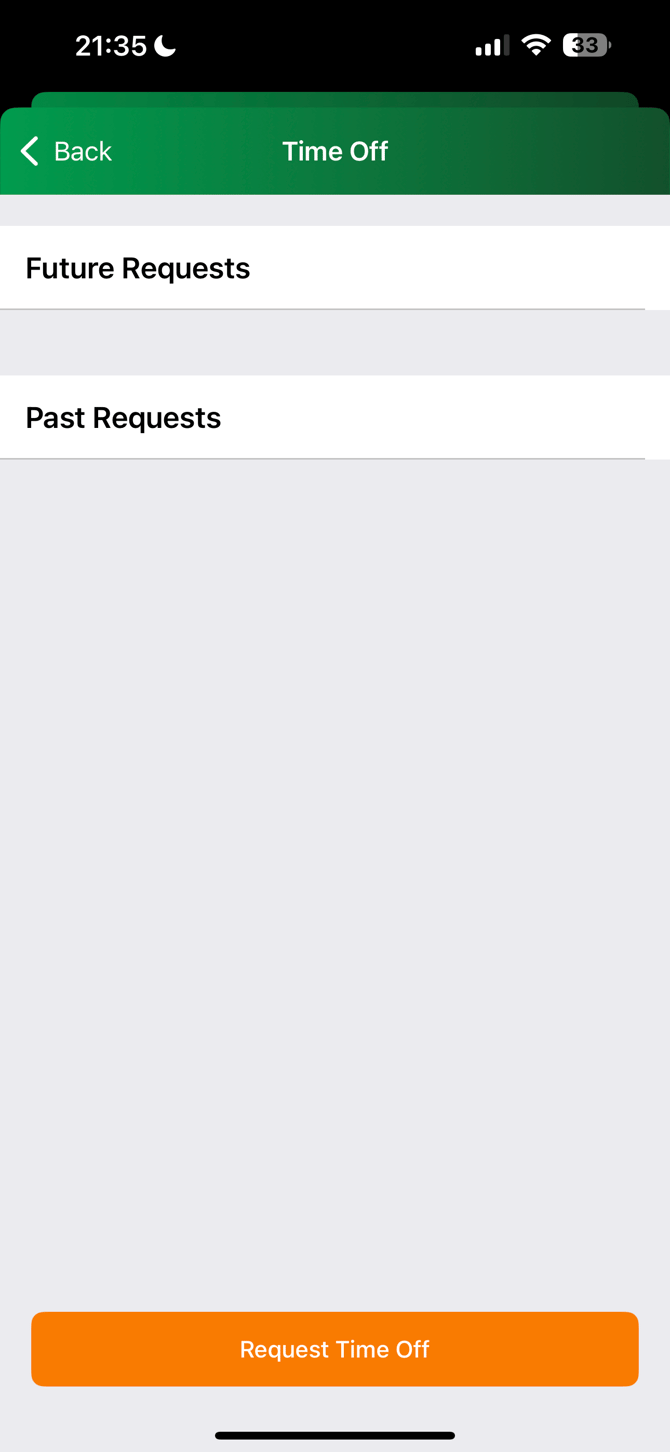
Method B: From the Account Menu
-
Tap your Profile Picture (top right).
-
Tap Account Information > Time Off.
-
Tap the orange Request Time Off button.
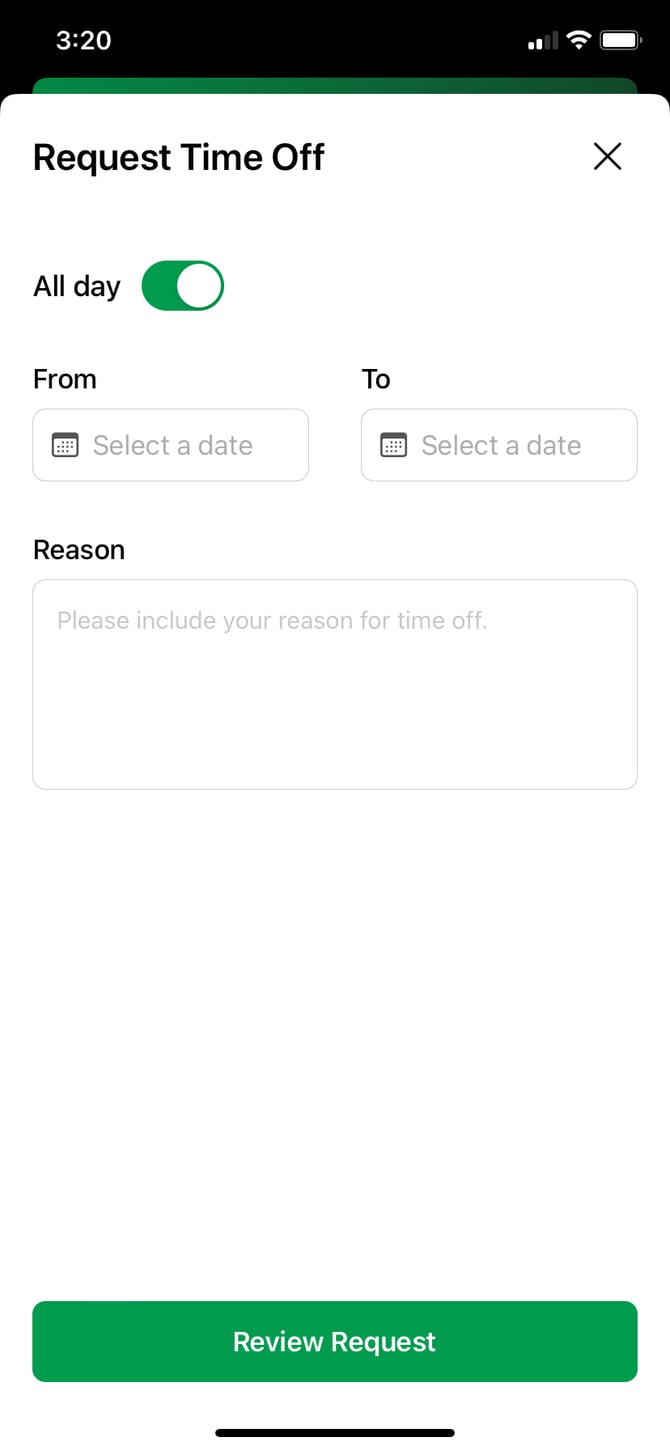
Filling Out the Request:
-
Duration/All Day:
-
Full Day: Toggle the "All Day" switch ON.
-
Partial Day: Leave "All Day" OFF and select specific start/end times.
-
-
Select From/To: Please make sure you have the right day(s), month(s), and year selected.
-
Reason: Input the reason (eg. "Doctor's Appointment" or "Birthday", for instance).
-
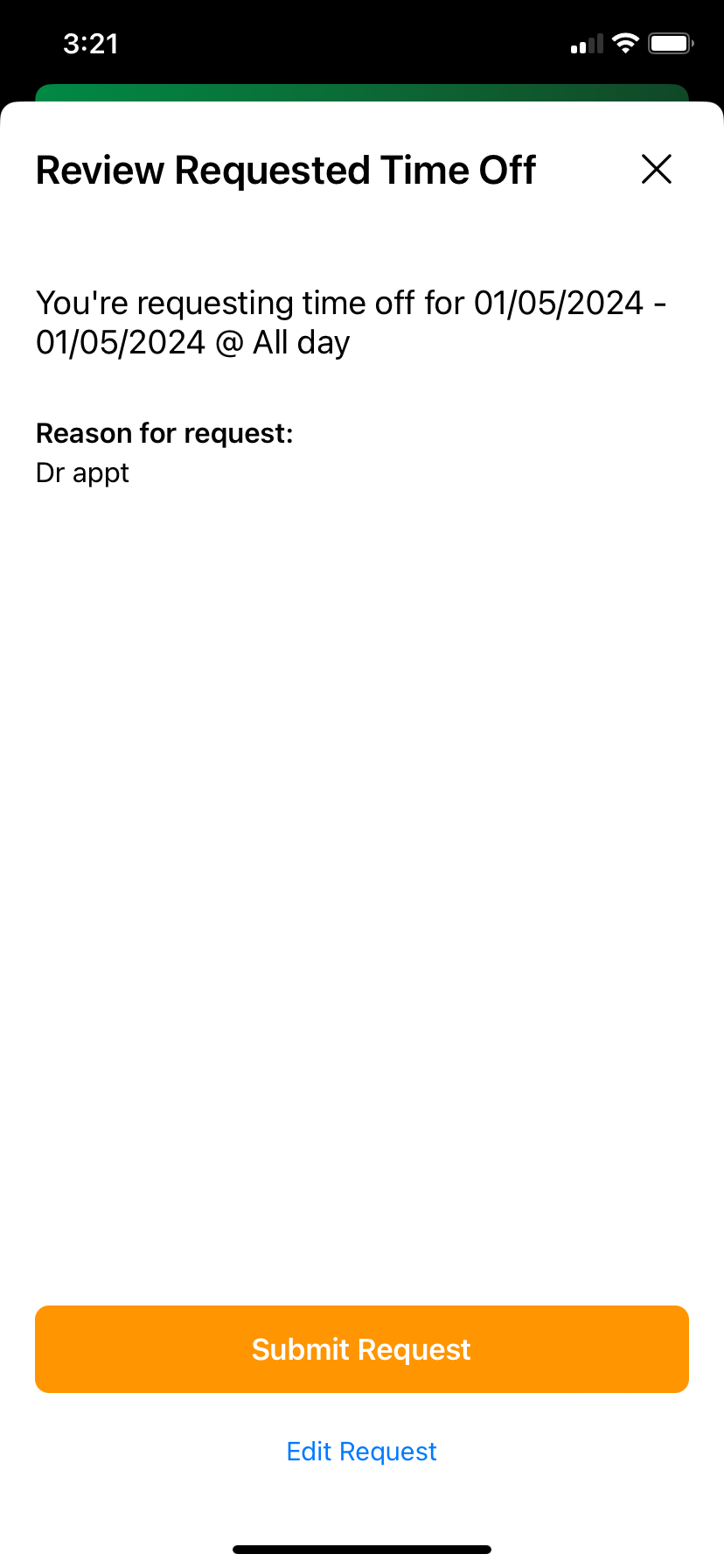
Submit: Your manager/admin will receive an alert to Approve or Deny it, which will reflect accordingly on your App.
-
Quick Tip: Extend or change a time off request
Have you already had your request approved, but need to extend it?
-
Just cancel your existing request and submit a new one, because you can only submit one request per day.
-
As a heads-up: You cannot revise requests that are already in the past.
4. zChat (Team Messaging)
Note: This feature depends on your company's settings.
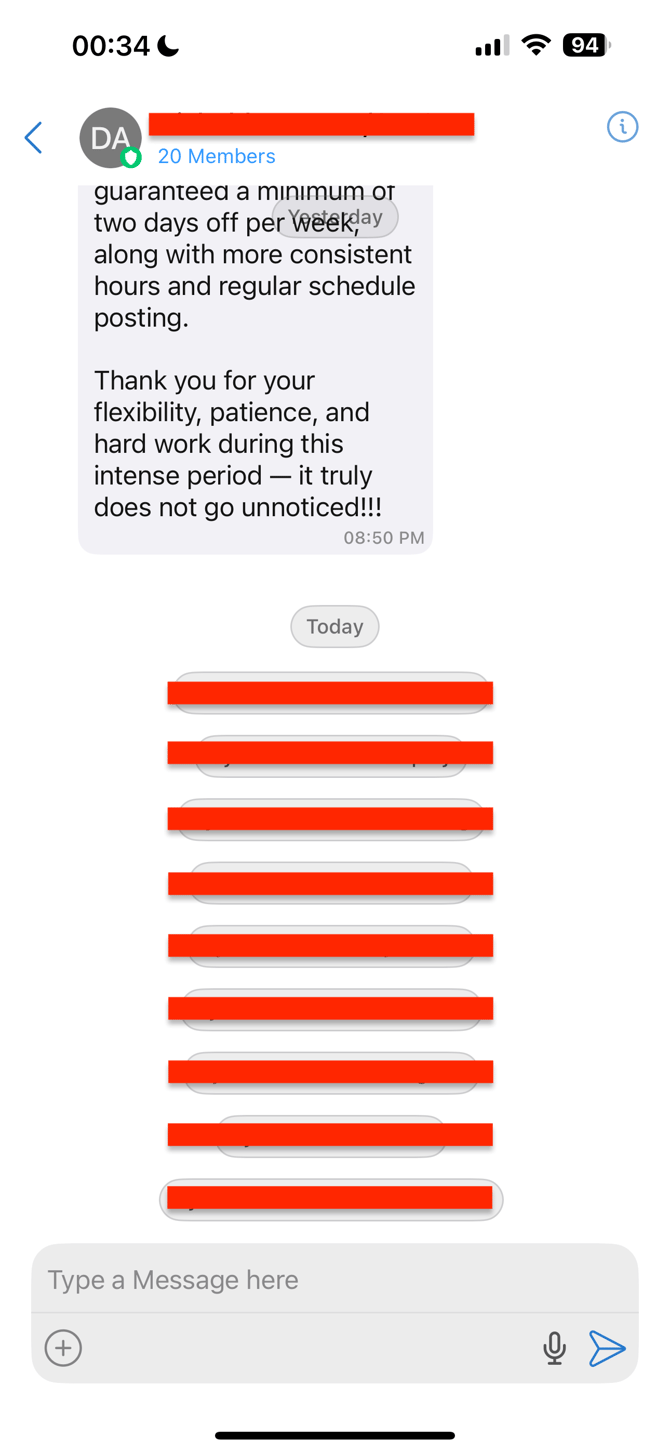
Tap the Chat Bubble icon to message co-workers or managers. You can see store-wide announcements and/or use zChat to interact within the "room", which is the store(s) you're assigned to.
Most commonly, this function is for team members to communicate with each other, react, and also advise of things such as shifts that need to be covered, absences, unforeseen events, as well as general broadcasts, as shown below:
5. My Account (Availability & Info)
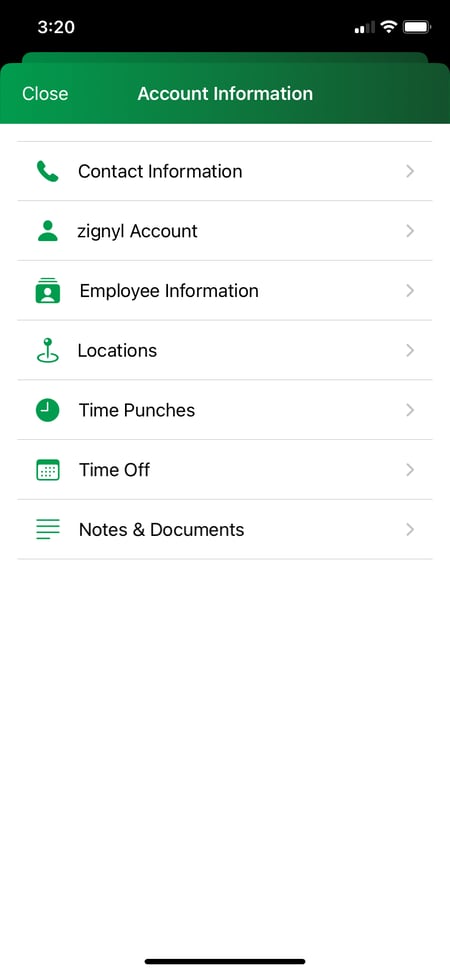
As shown in the screenshot below, the Zignyl Team App offers users the ability to modify/update the information that Zignyl sees as the control panel for the user's account settings.
Inside the Account Information tab, you will find:
-
Contact Information: Update your email or phone number.
-
Locations: View which store locations you are assigned to.
-
Time Punches: View a history of your past clock-ins/outs.
-
Notes & Documents: View documents uploaded by your manager (such as handbooks, documentation, or generic paperwork).
Updating Contact/Account Information
Verify and update your information:
-
To update your information, tap your Profile Picture in the main app screen.
-
Tap on Account Information.
-
Then click on Contact information, where you'll be able to see your personal information such as name, email and phone number.
-
If your manager or director or company admin has inputted anything incorrectly during your Zignyl Team App onboarding, please use this opportunity to correct this information.
Updating Availability
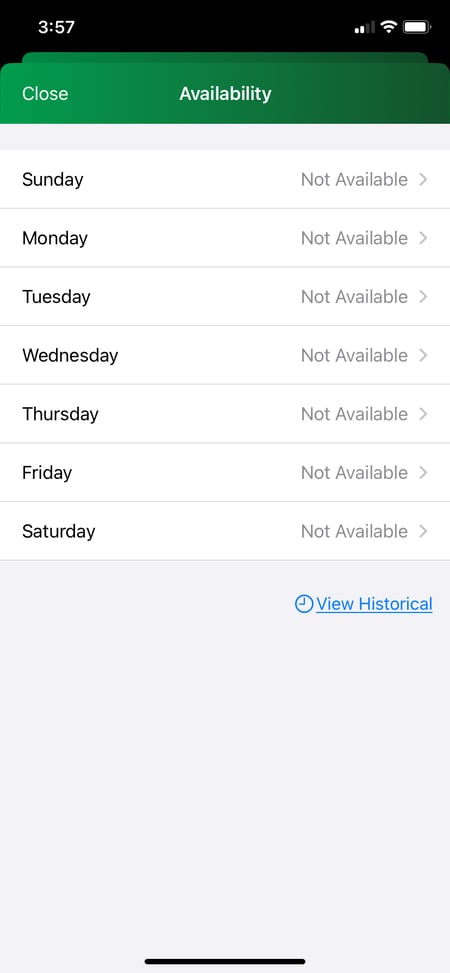
Let your manager know when you prefer to work (or when you have class/other jobs), as shown below:
-
In the main app screen, select your Profile Picture icon.
-
Tap Availability.
-
Select the Day of the Week you wish to change.
-
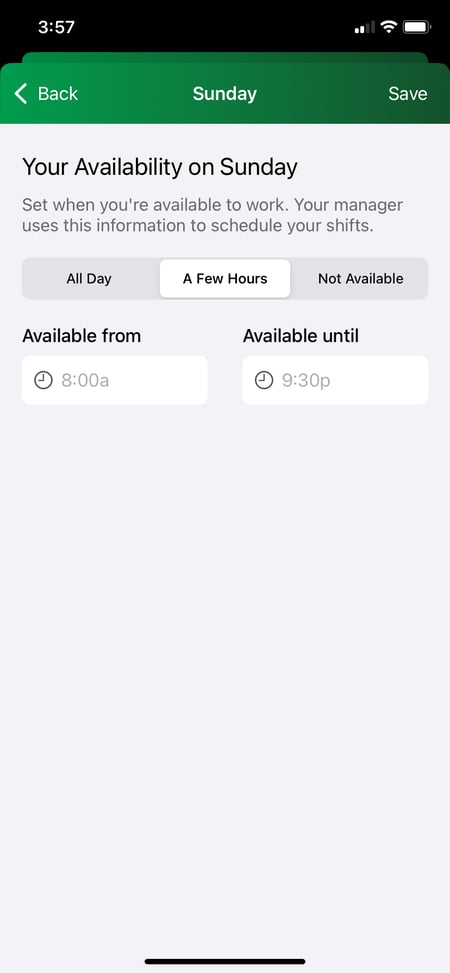
Set your status (e.g., "Not Available" or specific hours) and tap Submit.
-
All Day - this means you may be scheduled all day and have open availability on that day of week
-
A Few Hours - this means that you are only available from a certain start time to a certain end time on that day of week
-
Not Available - as shown, this means that you are not available to work
-
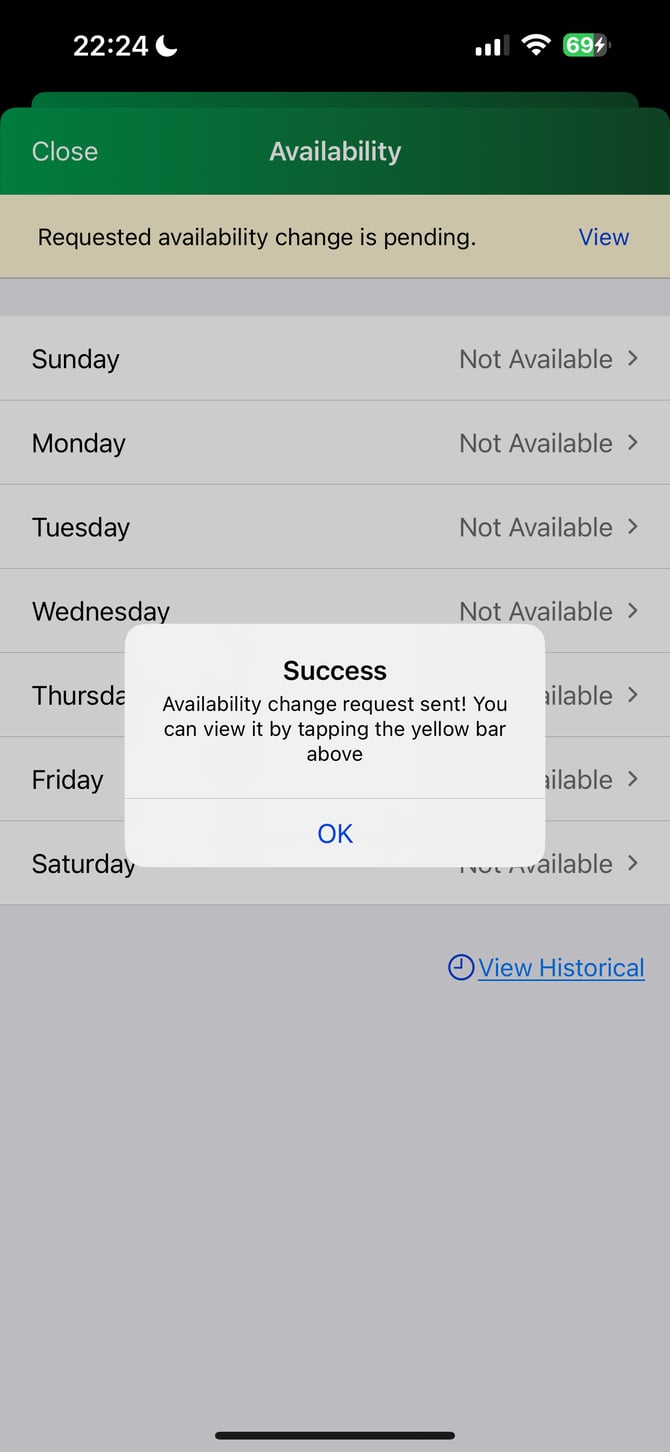
When your availability is submitted (as shown in the final screenshot), your request will be shown as pending until approved or denied.
-
Quick Tip: as a disclaimer, setting your availability does not guarantee that you will not be scheduled within the Zignyl platform. Please contact your manager if you have any questions about store-level preferences and scheduling settings.
-
6. Frequently Asked Questions
-
Where is my paystub?
-
Zignyl does not host your official paystubs or W2s. We track your hours, but your actual paycheck comes from your company's payroll provider. Please ask your Manager where to view your paystubs.
-
How do I see my total hours?
-
Go to Profile > Account Information > Time Punches. You can view your exact clock-in/out history for any date range to verify your hours.
-
How do I see my previous time off requests?
-
Go to Profile > Account Information > Time Off. You can view both past and future requests as shown below, and cancel if necessary. As a heads up, you cannot revise requests that are already been approved.
-
.jpg?width=450&height=881&name=Screenshot_20250210_101811_Zignyl+(1).jpg)