
Welcome to the team! This guide will help you activate your account or reset your password so you can check your schedule, pick up shifts, and communicate with your crew. Please note that this is for using the Zignyl Team app on your mobile device only!
The Activation Email
Your company admin or manager initiates your Zignyl account. You cannot create one yourself, unless you are the company admin.
-
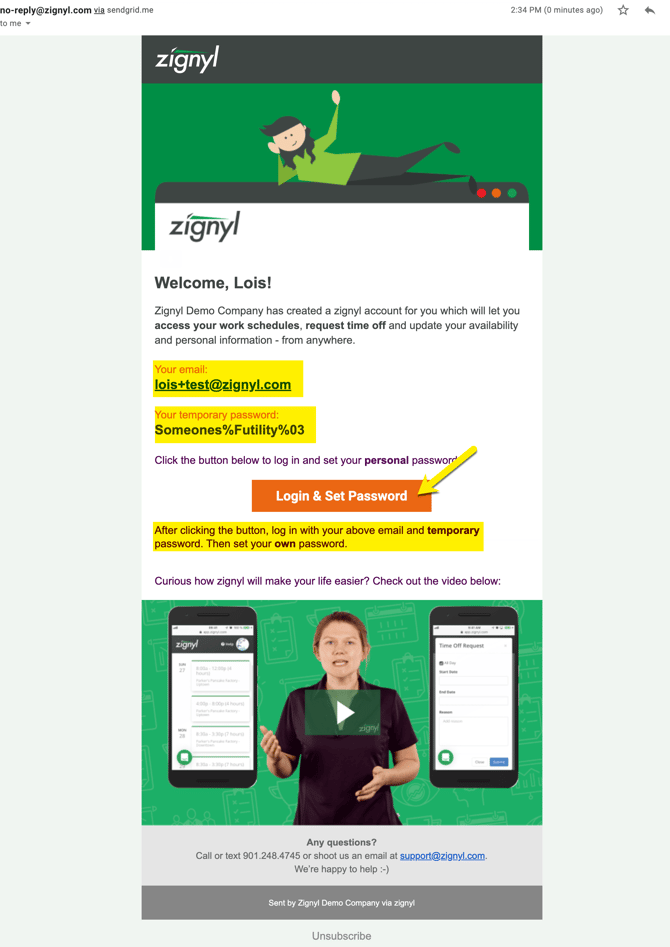
Step 1: On your mobile device, check your personal email inbox (and Spam folder) for an invitation from Zignyl.
-
Step 2: Open the email. Write down or copy the Temporary Password shown, then click the orange Login & Set Password button.
-
This link takes you to download the Zignyl Team App via the App Store or Google Play Store.
-
Note: This link is valid for 7 days. If it has expired, ask your manager to "Resend the Invite."
-
-
Download & Login
-
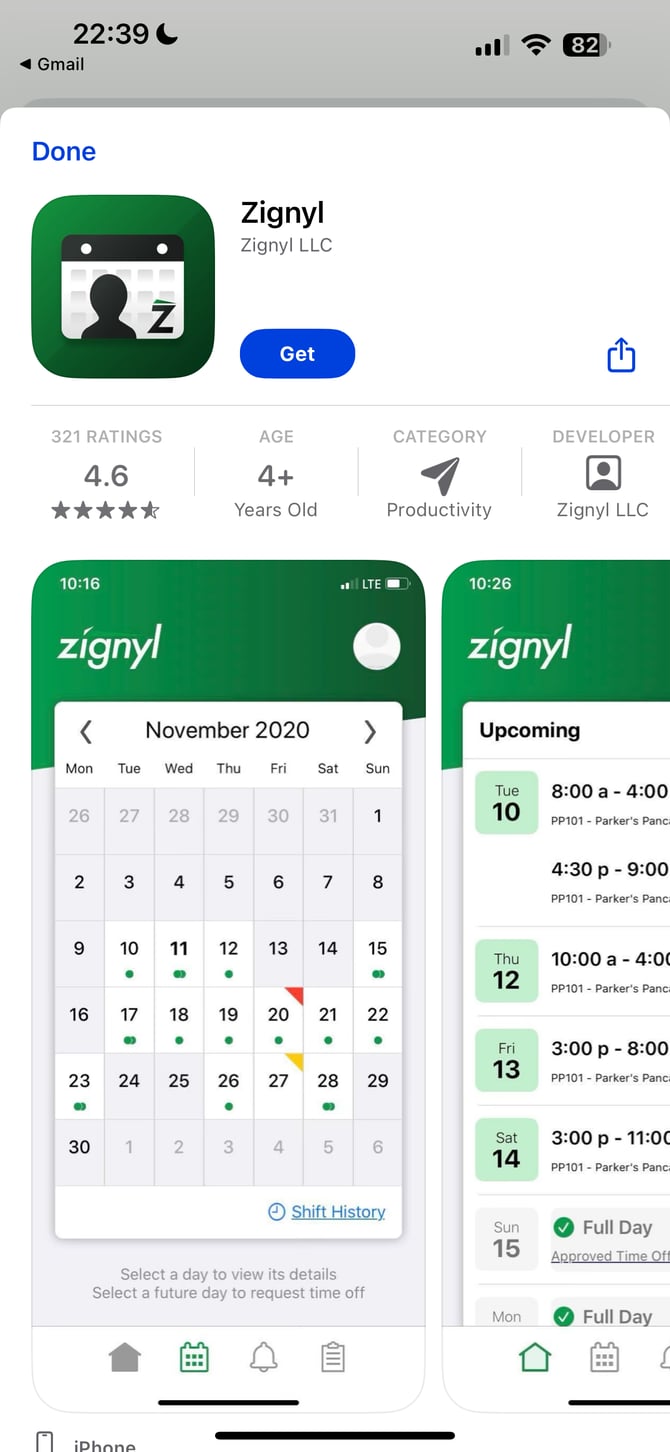
Step 3: The link will redirect you to the App Store or Google Play Store. Download and open the Zignyl app.
-
-
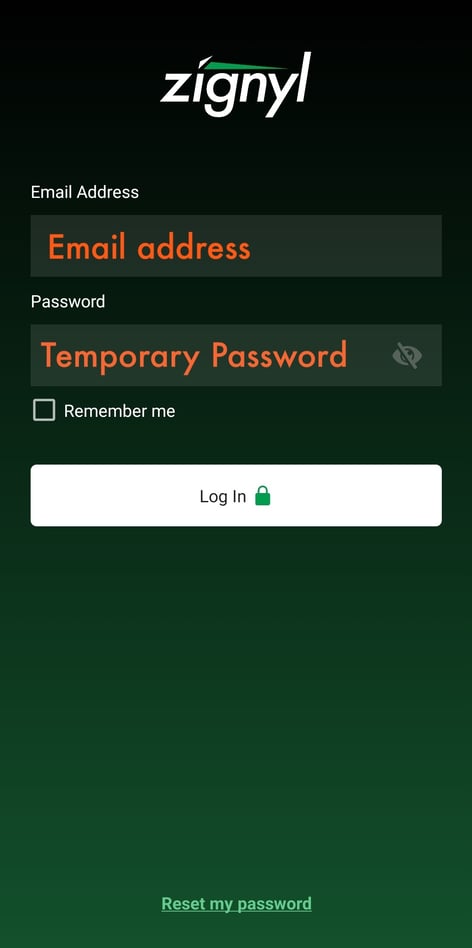
Step 4: Enter your email address and paste/type the Temporary Password you copied from the email.
-
-
Step 5: Tap Login.
Create Your Permanent Password
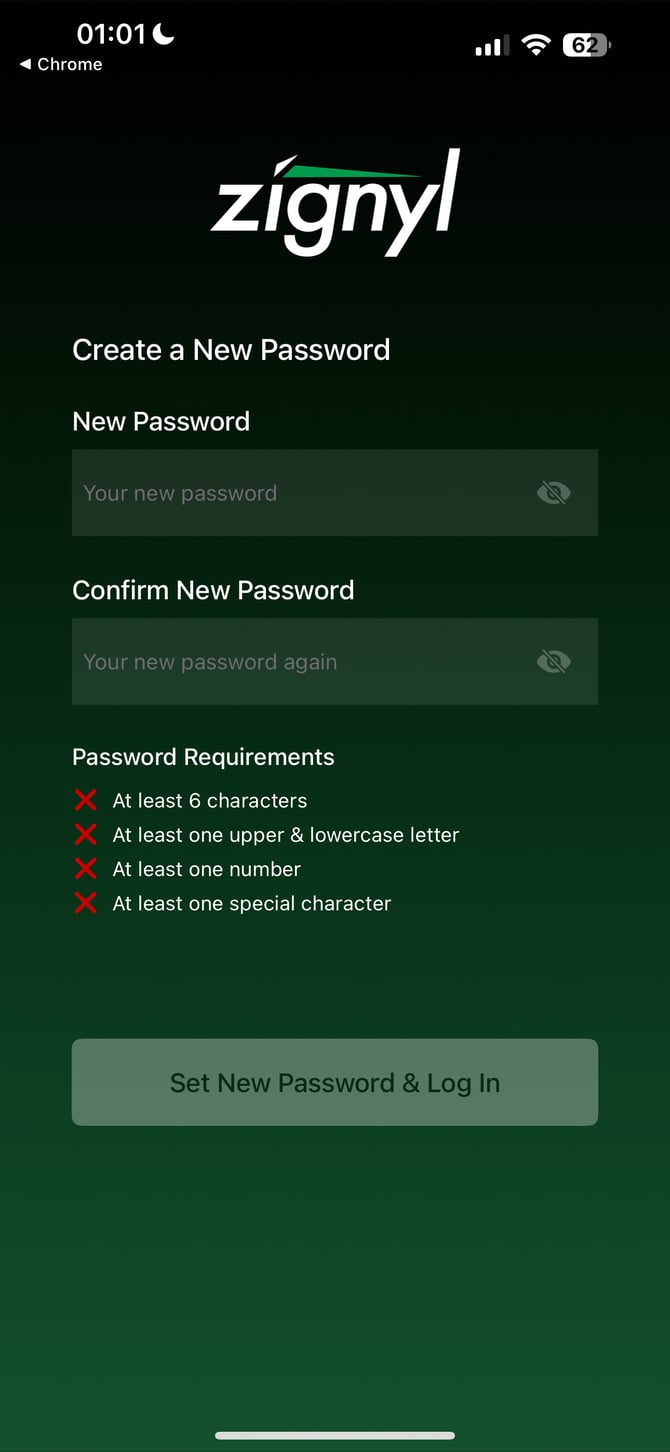
Step 6: Once logged in, the app will prompt you to create your own private password. It must meet these security rules:
-
At least 6 characters long.
-
Contains 1 Uppercase letter (A-Z).
-
Contains 1 Lowercase letter (a-z).
-
Contains 1 Number (0-9).
-
Contains 1 Special Character (e.g., !@#$).
Accept the Terms & Conditions shown below, and you are ready to go!

Troubleshooting Common Issues
Forgot Your Password?
If you can't log in, you can request a new temporary password directly from the app or by visiting https://app.zignyl.com/Account/ForgotPassword.
-
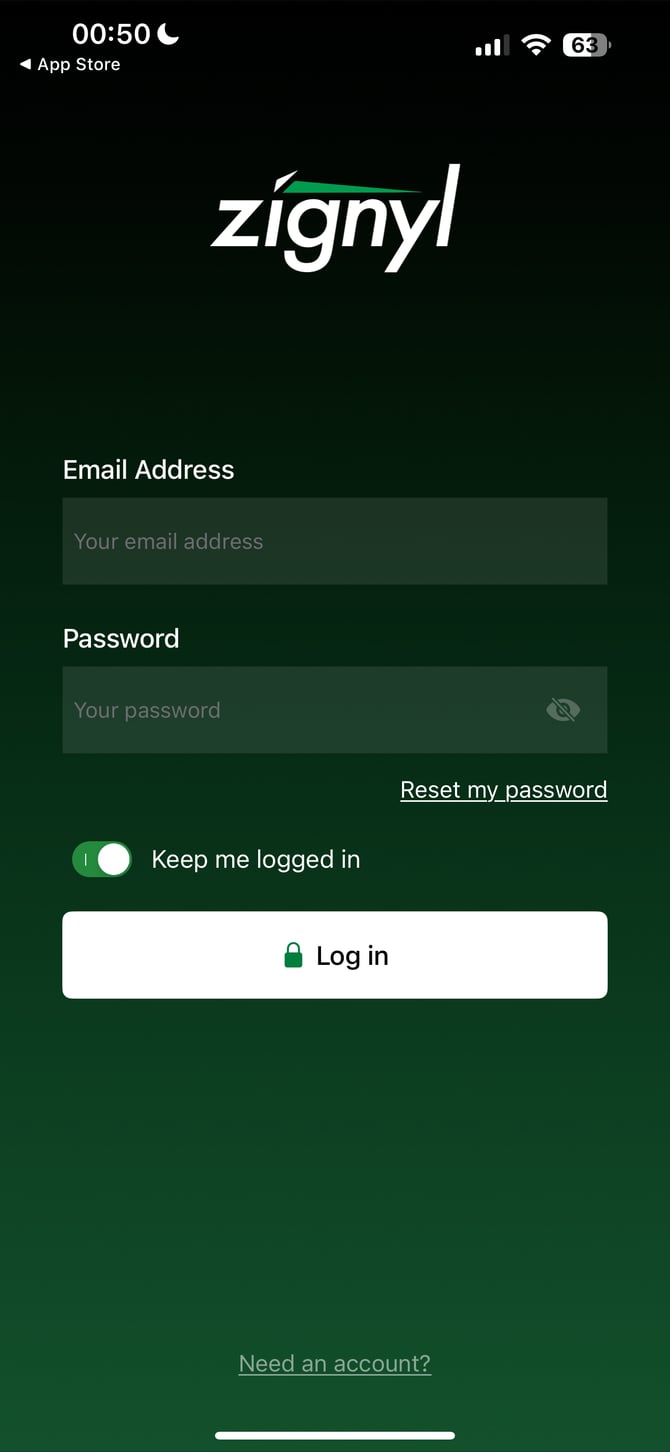
Request the Reset: On the login screen, tap Reset my password (located under the password field).
-
Send the Email: Enter your email address and tap Send password reset. You will see a "Success" pop-up.
-
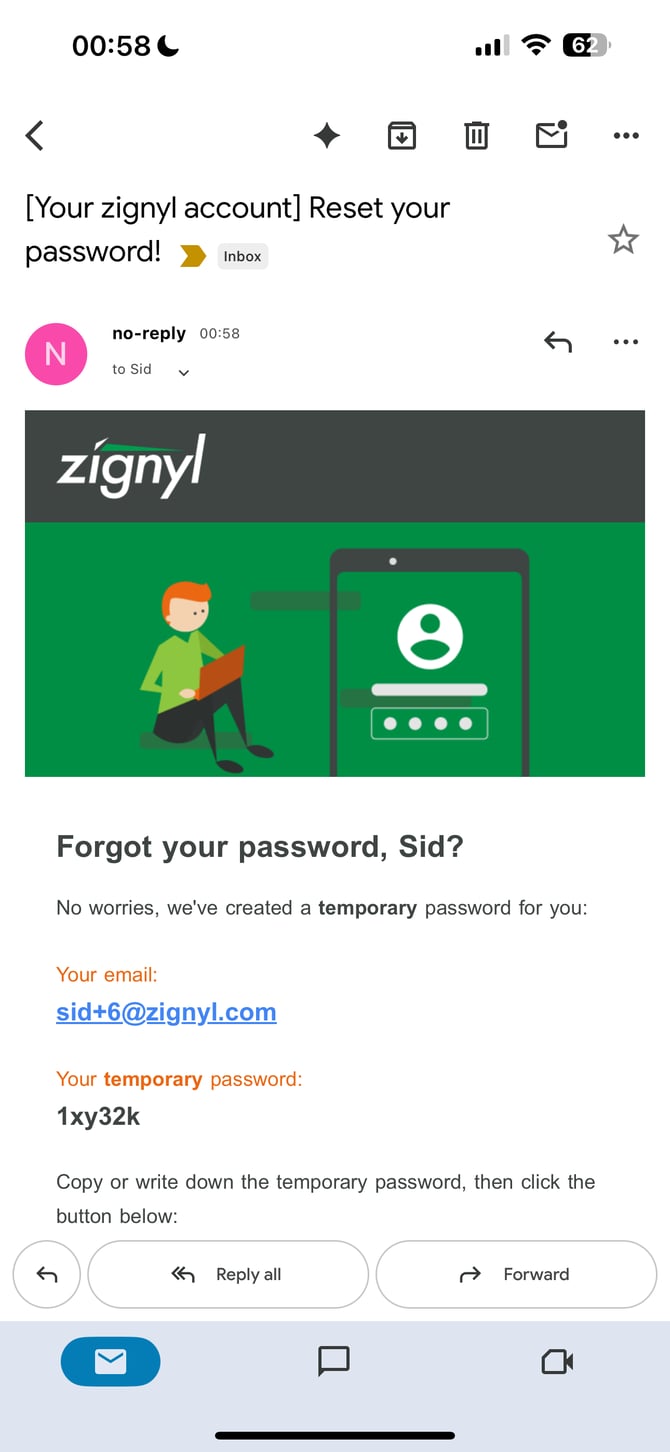
Get Your Temporary Password: Open your email inbox. You will receive a message with a new Temporary Password. Copy this code.
-
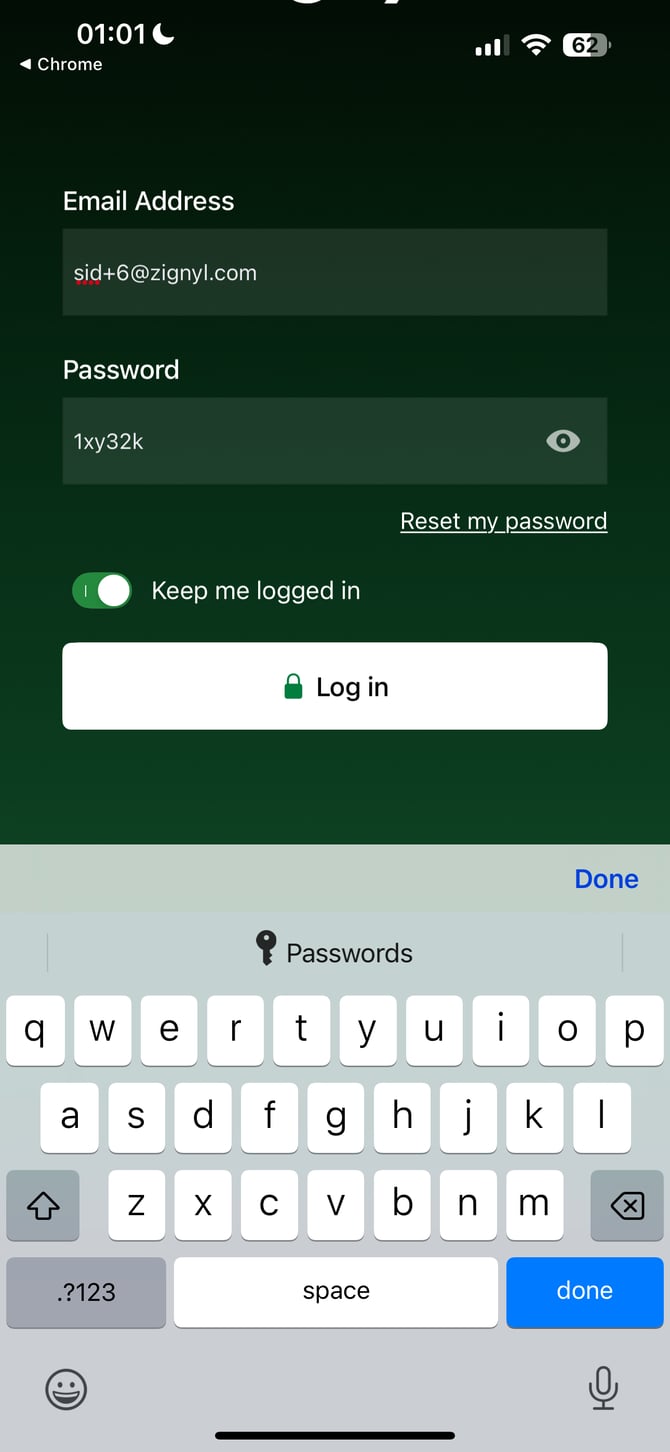
Log In: Click the Set My New Password link in the email to return to the Zignyl app (or open the app manually). Enter your email and the Temporary Password you copied.
-
Set New Password: The app will prompt you to create a new permanent password.
If all of the above steps were taken, you should be logged in correctly with a new password and login. For best results, please make sure you stay logged into the Zignyl Team App, and also write down your password in a safe and secure location.