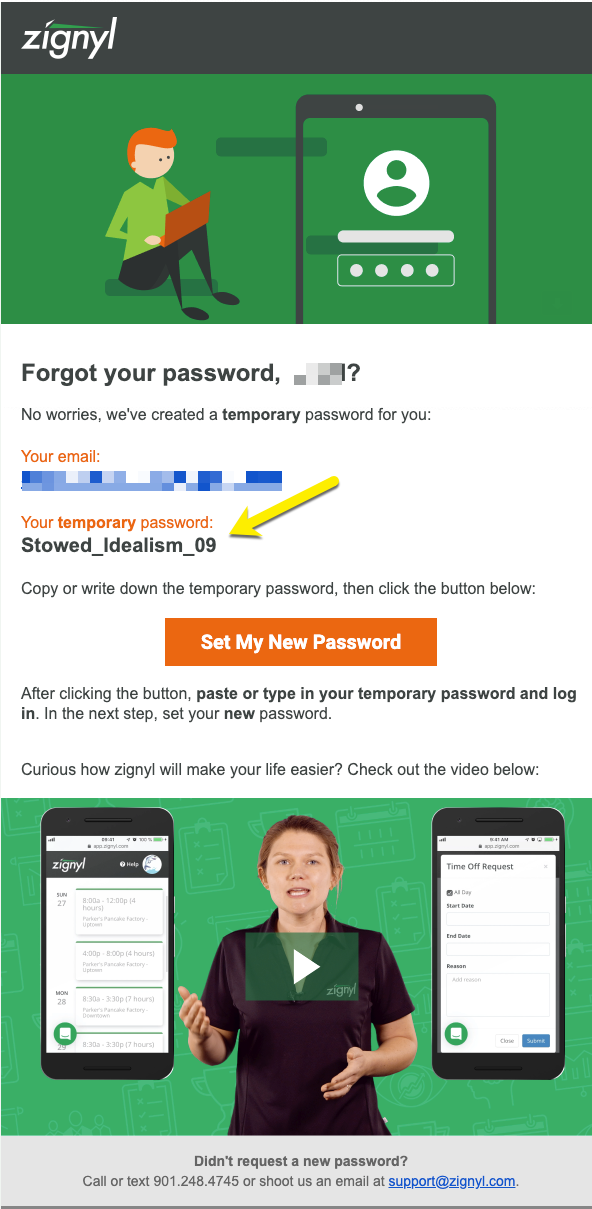
This article has frequently asked questions in regards to New Employee Account setup.
I’m A New Employee, How Do I Register My Account?
A manager will need to give you access by sending you the registration email. First check the email address you provided (also check the spam folder) the activation instructions are emailed. If the email was not received, contact your manager to have the activation link sent again.
For a comprehensive article on how to activate your Zignyl Team App, click here. For detailed usage, please click here.
I Am A New Employee, How Do I View My Schedule?
Here are some easy steps on how to view your schedule. To do so you will need to log into your zignyl dashboard with the assigned user name and password. Click the tab that says My Work Schedule.

The schedule will show the current week. To view past or future schedules click the arrows to change the dates. There is a link See Full Schedule that will show everyone scheduled at that location that week.

I Am A New Employee, How Do I Change My Password When I Log In?
From the Zignyl App or browser, enter the email address you provided to the manager for the Zignyl account. Scroll down below the Login box there is a link labeled Forgot your Password. Click the Forgot your Password link. The instructions for resetting the password will be sent to the email address used to set up the Zignyl account.
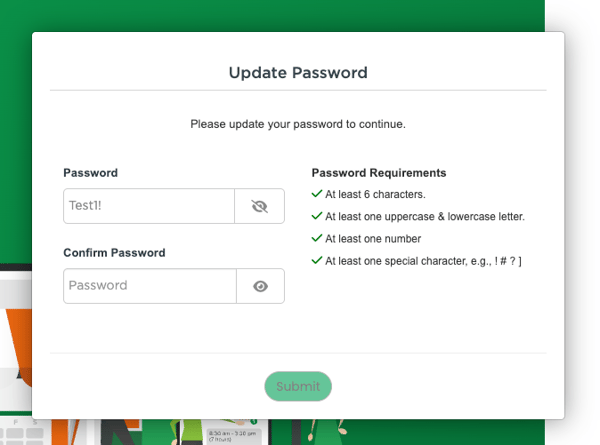
All passwords must be 6 characters long and include: lowercase letters, uppercase letters a number and a special character, as shown below:
I No Longer Have Access To The Email Address Linked To My Zignyl Account Or My Email Address Has Changed.
Sorry to hear that you no longer have access to the email address! The best way to get that updated is to contact your manager and request to have the email address updated on your employee profile.
5My Password Reset is Not Working