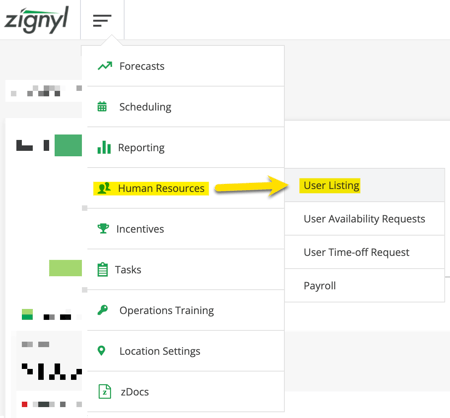
The Zignyl Management Portal serves as your central employee database. To access it, click Human Resources in the main navigation. You will land on the HR Index, which is divided into four key operational areas:
-
User Listing: The database of all employee profiles.
-
User Availability Requests: A queue of schedule changes waiting for approval.
-
User Time-off Request: A queue of vacation/leave requests waiting for approval.
-
Payroll: Quick access to run payroll reports.
User Listing: Navigation & Status
The User Listing is your primary dashboard.
-
Show Sidebar Toggle: At the top right, check the "Show Sidebar" box. When checked, clicking an employee's name opens a quick-view pane on the right side of the screen instead of navigating away.
-
Status Legend: Use the icons to quickly understand an employee's status:
-
Active (Green Check): Account is fully set up and active.
-
Invited (Yellow Envelope): Account created, invite sent, but not yet accepted.
-
No Access (Red X): Profile exists (e.g., for legacy data), but they cannot log in.
-
Archived (File Box): Former employee, hidden from active schedules.
-
Adding A New Employee
To add a team member:
-
Click the blue Add User button in User Listing shown below.

-
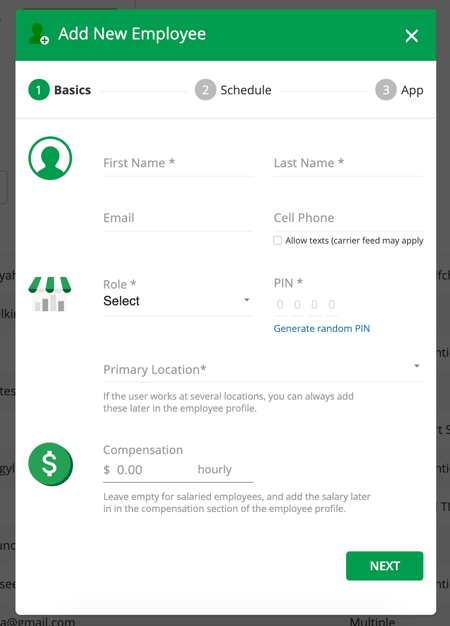
Basic Info: Enter First Name, Last Name, Email, Phone Number, and Compensation rate.
-
Role: Select the permission level (e.g., Employee, Shift Leader, Manager). This is absolutely imperative because setting the incorrect permission level may have both direct and second order consequences.
-
Location: You must assign the employee to a specific Primary Location to ensure they appear in the POS match list later. This will also affect reporting, time keeping, access, and their own functions as it exists on the Zignyl platform.
-
Compensation: Setting this correctly is highly recommended for hourly team members, because once this is set, they will be able to see this as well. If the user is salaried, please leave this blank. You may edit compensation later as well within the User Listing under the Human Resources section of their individual profile.
-
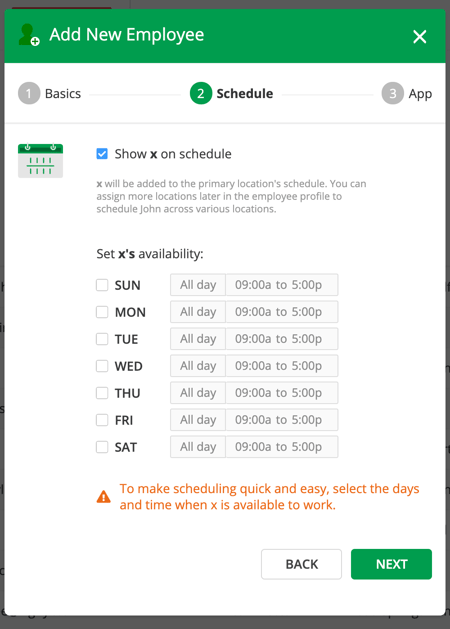
Availability: (Optional) Set their standard weekly availability now to make future scheduling easier.
-
Click Next to proceed to access setup.
Setting Access (PINs & App Invites) On the final setup screen, you control how the employee accesses Zignyl:
-
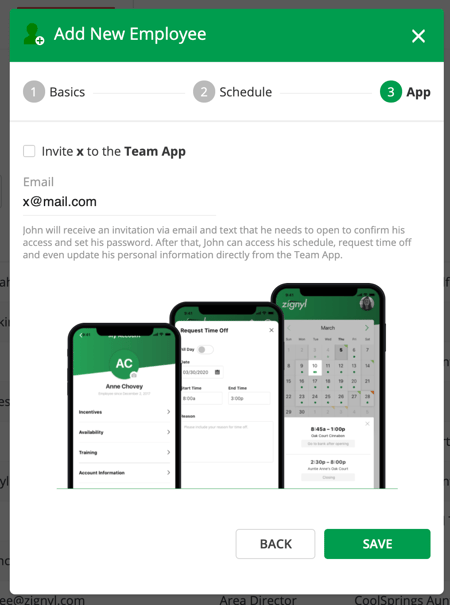
Zignyl Team App Invite: Check "Invite to the Team App" to send an activation email (valid for 7 days).
-
Note: If you only want to track an employee's task completion (e.g. BOH staff) but not give them mobile app access, simply uncheck this box.
-
-
-
PIN Setup: Enter a 4 or 6-digit PIN. The employee will use this to clock in and complete tasks on the Zignyl Clipboard. Dependent on your POS and Zignyl integration settings, this will be a 4 or 6 digit number that you may either assign or generate. Please keep in mind that you cannot create duplicate PIN numbers.
-
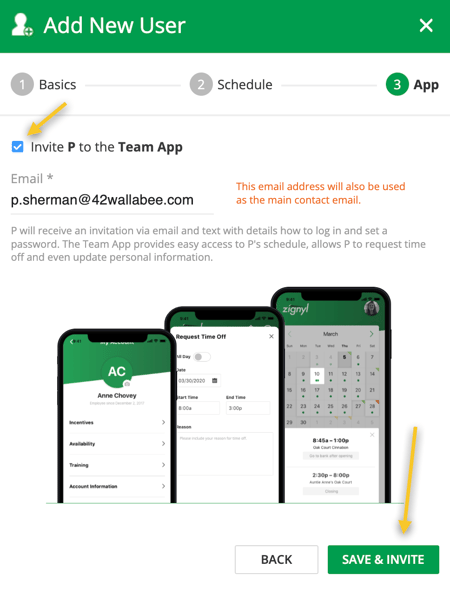
If you want to use Zignyl only to track the employee as they do tasks or sampling, you can create an account without sending an activation email to them. Just leave the checkmark unchecked on "Invite X to the Team App" before you click Save & Invite, as shown below:
-
In the instance where a user is not invited to the Zignyl Team App, they will still be able to use the PIN created to complete tasks or log sampling or location notes.
-
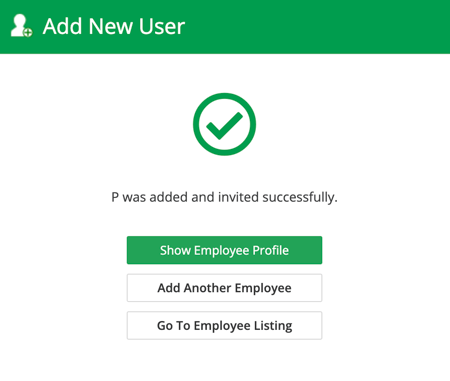
If all the steps above were completed correctly, you will see this screen below:
-
The employee will then have 7 days (168 hours) to activate their account once they receive an email telling them how to log into their Zignyl account. They will also receive a text message to activate their account, if a phone number was entered in the Cell Phone text field and Allow Texts is turned on.
Troubleshooting Activation/Access
If the employee did not activate their account in the time allowed, they will see this:
-
An invite will have to be resent to the email address on file. Please confirm with the new/returning user what the email is, and if you are an Area Director or Company Admin, please double check that this email is spelled correctly and is not already in the system (e.g., John Doe is rehired but uses the same email - johndoe@gmail.com: reactivating him is the right action vs. creating another John Doe user for your company).

-
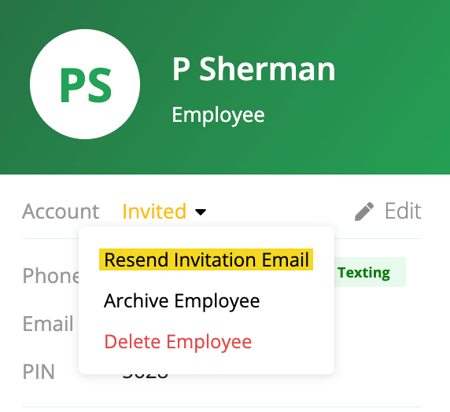
You can resend the invite by clicking on the Resend Invitation Email in the employee profile. This will resend the email/text to the employee, as shown below:
How Do I Send A Password Reset To An Employee?
This is a very common and frequently encountered problem, especially for newer users and team members who may lack exposure/training to Zignyl and your business.
-
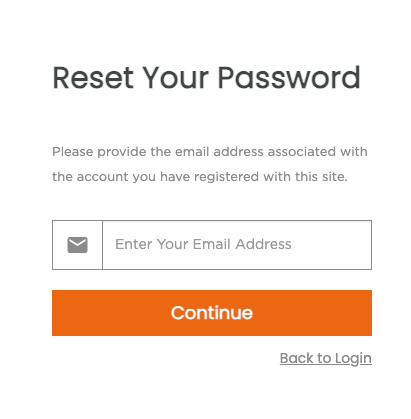
If the employee needs to reset their Password, at login, they need to click "Forgot password? or this link. You may provide them the link or instruct the user to navigate and reset themselves, as seen in this screenshot:
-
Hint: Always verify that the email and the phone number are correct.
Important! What happens when a team member/user already exists under the same email?
This is a very common problem we see as the platform grows and many team members are either archived, deactivated, or switch between different stores/franchise groups. It's very possible that this user is already in our system.
-
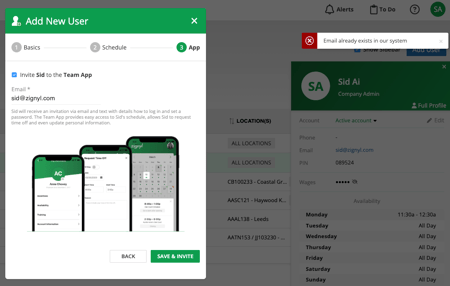
If you try to complete the user creation process with an email that is already in our system, you will see the below error screen, with the message of "Email already exists in our system", as shown below:
-
As mentioned in a previous section, it is imperative to double check that:
-
They do not currently or did not previously work for a different business that also uses the Zignyl platform, using that email.
-
The email they are providing is a unique, personal email, and not a company or organizational one.
-
-
In this situation, you can either do one of two things:
-
Ask the team member you're attempting to add under a different email address than what you've input.
-
Reach out to support@zignyl.com and we can look into it and resolve the duplicate email match for you.
-
Editing via Full Profile/The Sidebar (Quick Actions)
If you have "Show Sidebar" checked, clicking a user's name opens the Quick Action Sidebar. Otherwise, clicking a User will open their Full Profile.
-
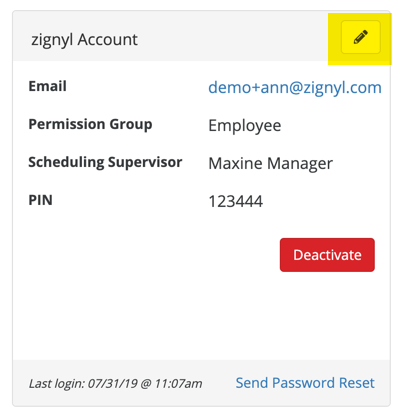
Quick Edit: Click the Edit button (top right of the sidebar) to rapidly update:
-
Name, Email, Phone.
-
Role (Permission Level).
-
PIN (Reset/Change instantly).
-
Texting Permissions (Allow/Disallow).
-
-
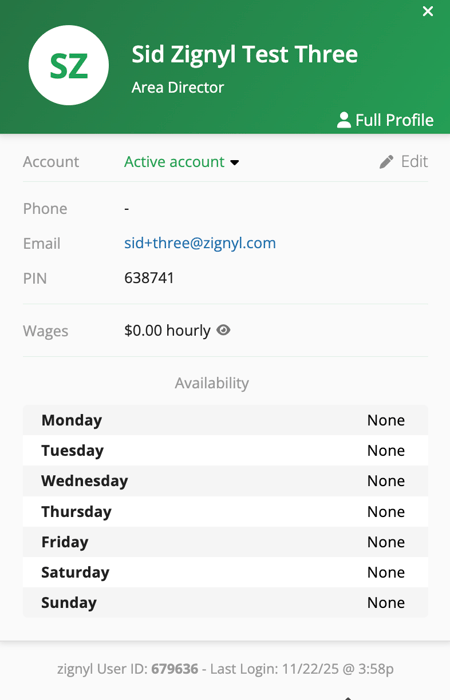
Changing their name, phone, allow texts, email, role are relatively straightforward as shown below with their respective fields:
-
Also, you may occasionally encounter a situation in which an employee needs to reset their PIN.
-
Either through the sidebar or the full user profile, editing will allow for you to either overwrite or regenerate a PIN for the user.
-
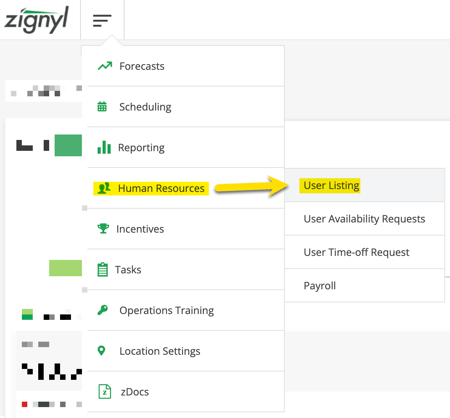
Alternately, you may also change a PIN via clicking Human Resources in the Zignyl Management Portal, and then User Listing.
-
Filter for location, name, email, or cell.
-
Choose an employee that needs to be changed from the Employees list.
-
Click Edit, and then set a PIN accordingly and notify the user.
-
-
Please note that PIN numbers, whether 4 or 6 digit, cannot be duplicated in the Zignyl system (e.g. User 1 has 123456, User 2 cannot set their PIN as 123456).
-
View Wages: Click the Eye Icon next to the hidden wages (
•••••) to reveal their current pay rate. Please note that this is sensitive information, and to consult with your manager, area director, or company admin if you have any questions over accuracy or privacy.
Full Profile Edit: If you click this button, you will be taken to the full employee profile, where you can edit everything you saw in the Sidebar view, but in an expanded, full-sized window.
-
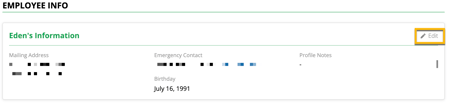
Similar to the previous sidebar view, you can change their contact information, mailing address, etc as shown below:
-
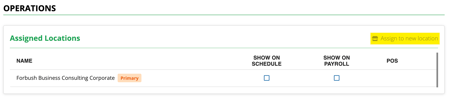
You may also assign them to additional locations, as shown below under Operations (within Human Resources -> User Listing):
-
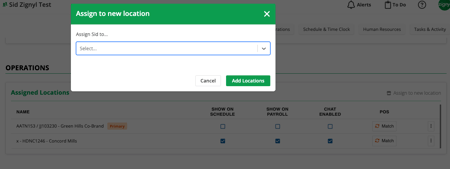
After you click Assign to new location on the user profile, you will see a popup window
-
In the dropdown, please select the location you wish to assign this user to, and whether you want them to show up on schedule and payroll, as well as have chat access on the Zignyl Team App.
-
It is imperative that you make sure you have the right location and settings per location selected, because the users will not be able to use the Zignyl platform to its full capability otherwise.
-
-
-
Similarly, please ensure that you're matching new users you have created or assigned per store via POS match, which is also discussed in this article.
-
-
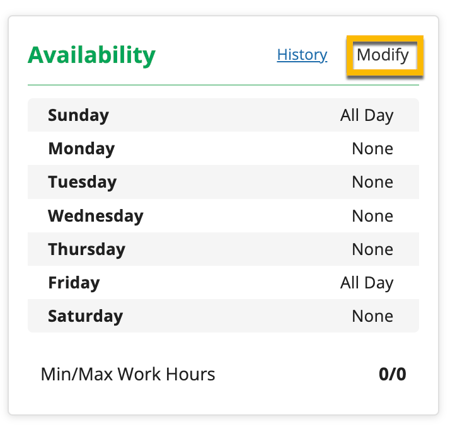
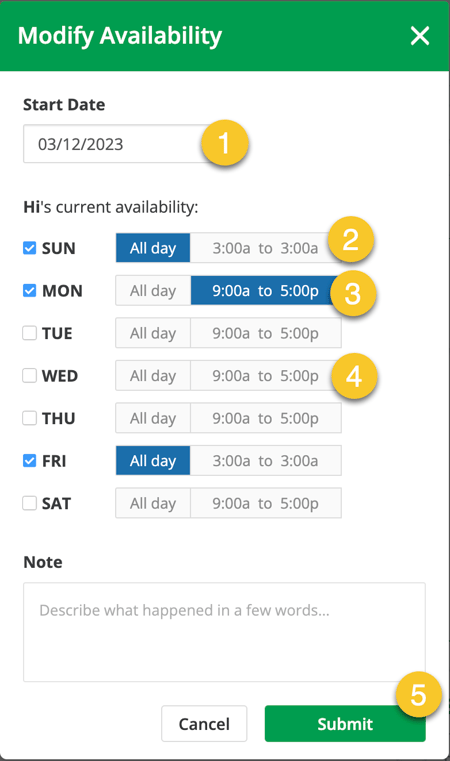
Within either the Full Profile or the Sidebar, you may edit their availability as shown:
-
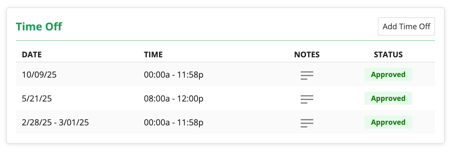
Add Time Off: Click on Add Time Off, choose the Start and End date for time off request of employee. Enter a reason, then click on submit.
-
For a more in depth exploration of scheduling and time off, please see the scheduling and time management links, respectively.
-
If you are not using Zignyl scheduling, you may skip this step.
-
If you are using the Zignyl Time clock you can enter or correct Time Punches. Please click here to go to article.
-
-
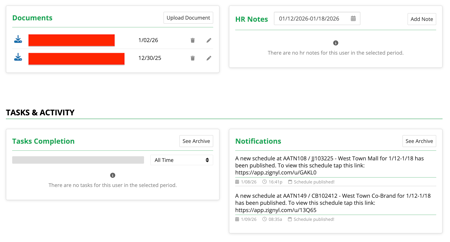
In addition, there are some other editable elements within the full employee profile page, such as Documents, HR Notes, Tasks & Activity, and Notifications, as shown here:
-
Documents: Includes documentation, job-related files, and hire/performance/termination paperwork.
-
HR Notes: Includes HR-relevant notes (no attachments). Please exercise judgment and consider the access level of both the editor and the employee profile.
-
Tasks & Activity: Shows individual, user-assigned tasks (e.g., scheduling, forecasting).
-
Notifications: Displays system alerts, such as when a new schedule is published.
-
Sensitivity Notice: PII & HIPAA Compliance This section may contain sensitive data, including Personally Identifiable Information (PII) and Protected Health Information (PHI). Users are responsible for ensuring strict adherence to privacy laws when accessing, editing, or sharing employee records. For more information, please access our Zignyl Privacy policy here.
-

Advanced Management/POS Matching
To edit advanced settings (POS Matching, Documents, Pay History), click the green Full Profile button.
POS Matching & Locations:
Matching and managing POS imported employees with Zignyl users is a critical part of the Zignyl platform, whether you use Zignyl for time keeping or not. For Zignyl to track Net Sales Per Transaction (NSPT) and other performance metrics, the system must know which POS user ID belongs to which Zignyl employee. You may access POS through either the Location Settings or through the individual employee profile in HR: User Listing. For ease of access, please see both access points to manage POS Matching below:
POS Matching via User Listing
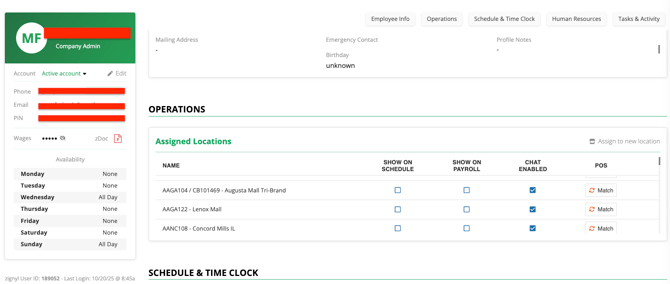
-
Go to Human Resources > Employee Listing.
-
Identify a specific user (the individual you wish to troubleshoot or match).
-
Click their name, and then Full Profile.
-
Within their User Listing Employee page, scroll down to Operations.
-
Click the Match button under the POS column.
-
A pop-up will appear. Select the Unmatched Users tab to see a list of names pulled directly from your POS system.
-
Find the correct name in the dropdown, click Match, and then click Confirm.
-
Troubleshooting: If the name you want to match is not listed, ensure the employee has been created in your POS system first, and that you have assigned the Zignyl employee to the correct location in step 1.
POS Matching via Location Settings:
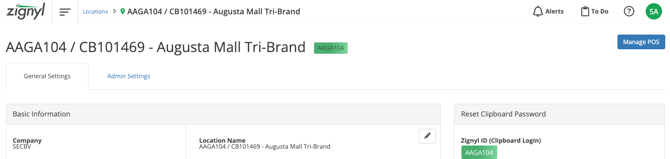
-
Go to Locations or click here.
-
Select the location you wish to configure POS matching for.
-
In the General Settings tab, click Manage POS in the top right of the screen.
-
A pop-up will appear. Select the Unmatched Users tab to see a list of names pulled directly from your POS system.
-
Find the correct name in the dropdown, click Match, and then click Confirm.
POS Matching Tips and Tricks:
-
Identify the POS User: Look at the POS Name and POS ID columns.
-
Tip: Use the Last Used column to see the last date this ID had activity. If the date is old, it may be an inactive duplicate.
-
-
Select the Zignyl User: In the dropdown menu under "Match Zignyl User or Ignore", find the corresponding Zignyl employee account.
-
Note: Matching is Exclusive. Once a Zignyl user is matched to a POS ID, they cannot be matched to another ID at the same location.
-
-
Click Match: Click the green Match button. The user will move to the "Matched Users" tab.
-
When to "Ignore":
-
If you see generic IDs (e.g., "Cashier 1", "Bar 2") or terminated employees that you do not want to track, click the orange Ignore button. This removes them from your "Unmatched" alert list so you can focus on active staff.
-
POS Matching Troubleshooting:
-
Name Not Listed? Ensure that your POS is up to date and connected to Zignyl first, the employee has been created in your POS system second, and that you have assigned the Zignyl employee to the correct Location in their HR User profile.
-
Duplicates? POS systems may sometimes create duplicate IDs for the same person (e.g., "Jonathan Washington" vs. "Jon Washington"). Use the Last Used date as well as your own POS verification to determine which ID is active, match that one, and Ignore the old one.
HR Tab: Compliance & Data
-
Documents: Upload files (contracts, certs) via the Documents section. (Warning: Do not upload HIPAA-sensitive medical records).
-
Compensation History: To give a raise, do not just overwrite the number. Click Modify next to Compensation, enter the new rate and effective date, and save. This preserves pay history.
-
Operational Fields: Track specific details including:
-
Uniform Size
-
Emergency Contact
-
Scheduling Supervisor (Defaults to the creating manager, but can be changed).
-
Troubleshooting Access
-
Resend Invite: If the 7-day link expires, click Resend Invitation Email on the profile.
-
Password Reset: If an employee forgets their app password, click Send Password Reset.
Managing Requests (Queue)
Manage approvals in bulk from the HR Index rather than individual profiles.
User Availability Requests
-
Click Manage Availability Requests.
-
Review the "Old" vs "New" schedule proposal.
-
Approve to update their profile automatically, or Deny.
User Time-off Requests
-
Click Manage Time Off Requests.
-
Use the filters to view Pending, Approved, Denied, or Cancelled requests.
-
Click History to view past requests beyond the current date range.
-
Click a request to view details and Approve or Deny.
Running Payroll
From the bottom of the HR Index:
-
Click Run Payroll.
-
Select your date range and location.
-
This generates a report of total hours, overtime, and calculated pay based on the compensation rates stored in the User Listing.
Archiving Vs. Deleting
-
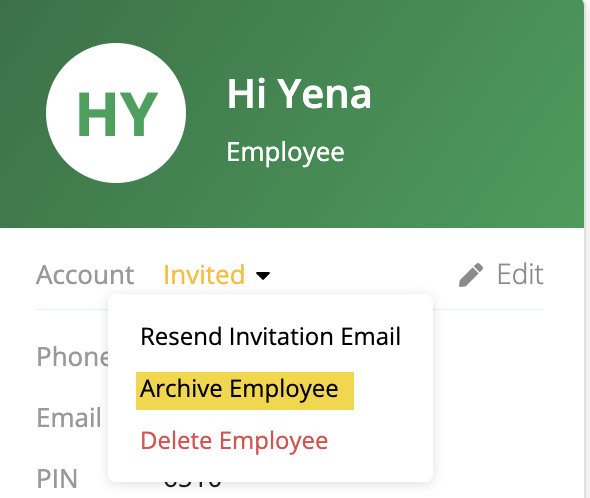
Archive (Standard): When an employee leaves, click Archive Employee on their profile. This hides them from schedules but saves their data.
-
Re-Hire: Toggle Show Archived Employees in the User Listing to find and reactivate them.
-
Delete: Only Area Directors or Company Admins can permanently delete a user.
-
See below screenshot for the options on archiving vs. deleting an employee: