
The Time Management tools in the Zignyl Management Portal allow managers to oversee employee attendance, correct time clock errors, and manage time-off requests. Accurate time records are critical for payroll and labor compliance.
The Time Clock Overview
Employees clock in and out using the Zignyl Clipboard (tablet) at your location or via the Zignyl Team App (if enabled). These actions create "Time Punches."
-
Real-Time Data: Punches appear immediately in the Management Portal.
-
Errors: If an employee forgets to clock out or clocks in late, a Manager must manually correct the record.
Correcting Time Punches
There are three ways to access and fix time punches: via the Quick Sidebar View, the Employee Profile, the Time Clock Report. As a reminder
Method A: From the Employee Profile with Sidebar
-
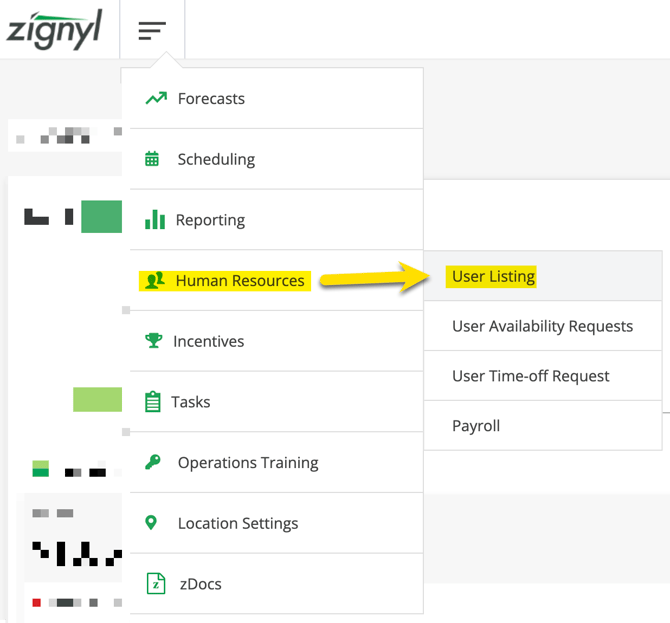
Go to Human Resources > User Listing.
-
Ensure that the "Show Sidebar" checkbox is toggled on.
-
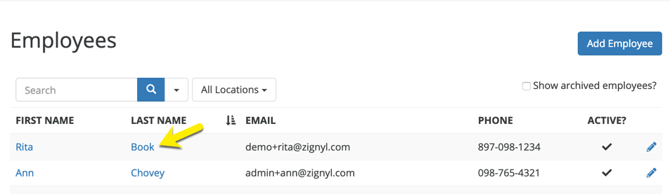
Select the applicable location(s), and then search for the user's name, email, or cell phone listed in their profile.
-
Click the bolded First Name or Last Name of the user you wish to edit.
-
In the sidebar, scroll down to the green Time Punches dropdown to see recent activity.
-
Click Add to make quick adjustments without loading the full profile.
Method B: From the Employee Profile Full View
-
Navigate to Human Resources > User Listing.
-
In the User Listing, ensure "Show Sidebar" is unchecked on the top right.
-
Select the applicable location(s), and then search for the user's name, email, or cell phone listed in their profile.
-
Click the bolded First Name or Last Name of the user you wish to edit.
-
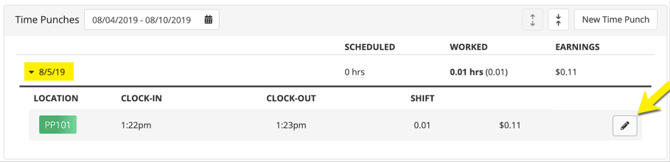
Scroll down to the Schedule & Time Clock section in the full profile of the user.
-
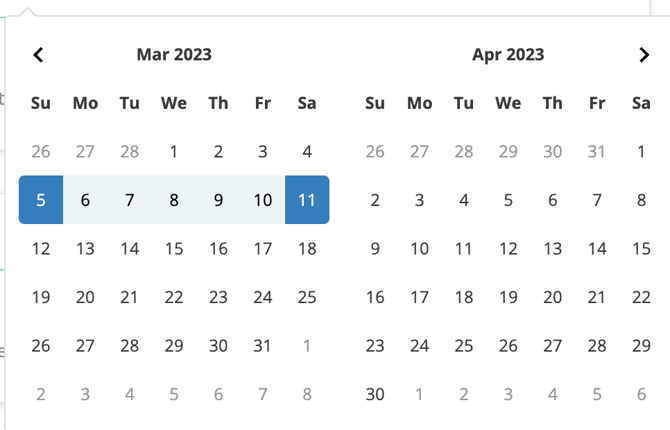
Use the calendar date picker to find the specific week.

-
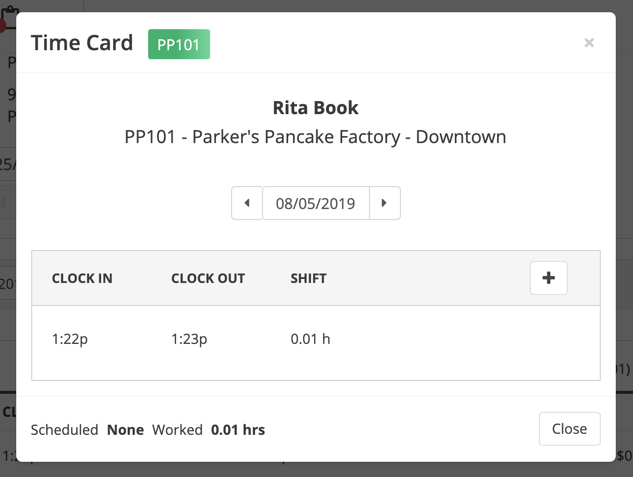
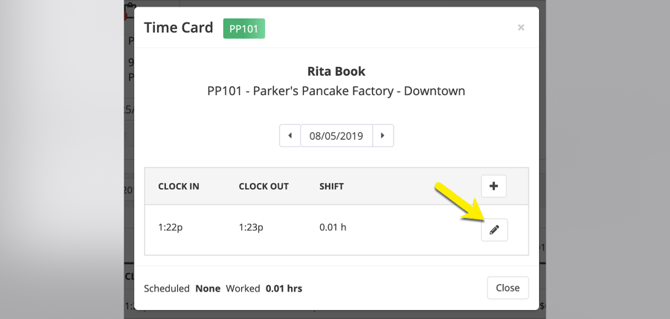
Edit a Punch: Click the Pencil Icon next to the specific time (In or Out). Enter the correct time and add a mandatory Note explaining the change (e.g., "Forgot to clock out"). Click Save.
-
Add New Punch: If they forgot to clock in entirely, click Add New Time Punch. Select the date, enter both Start/End times, select the Location, add a Note, and click Save.
-
Method C: From the Time Clock Report (Bulk Fix)
To review everyone's punches for the day at once:
-
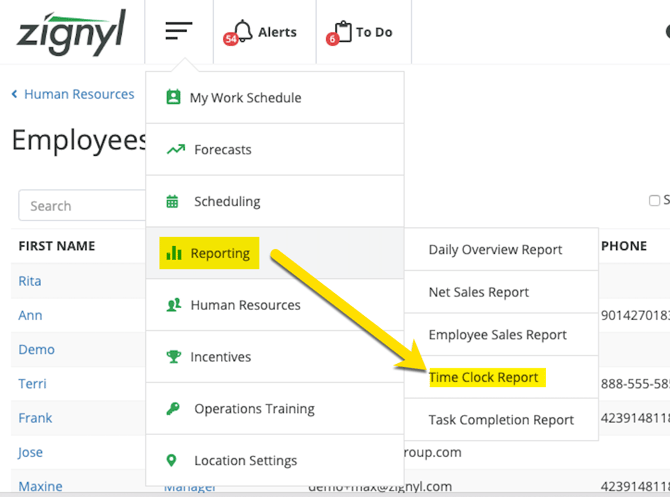
Go to Reporting > Time Clock Report.
-
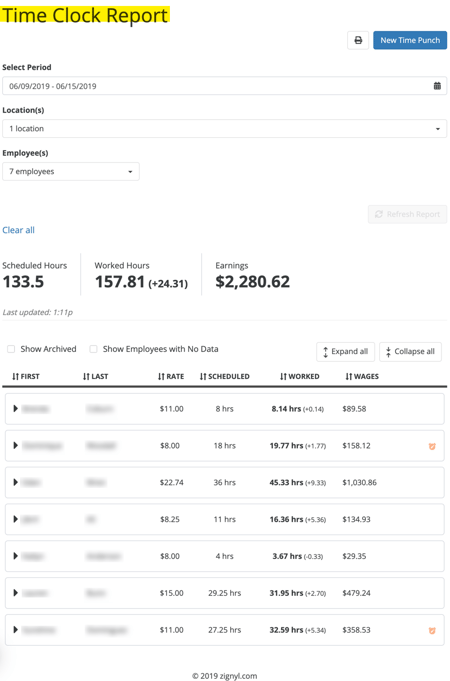
Run the report for the desired date range and specific location(s) you wish to review or edit.
-
Filter for employee(s), if necessary, and click Run Report.
-
Click the Expand/Collapse triangle arrow/toggles to expand on a per employee/user basis.
-
Narrow down the time frame that you're looking for.
-
Quick Tip: The OT
 symbol next to a date or a time event indicates overtime, the pencil inside the orange alarm clock
  indicates an edited time punch, and a gray A alarm clock
  symbol indicates an auto-clockout (ie. a user was left clocked in and the system automatically clocked them out at midnight)
-
-
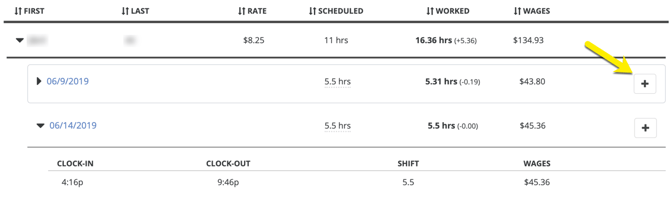
In the event of a missing, erroneous, or duplicate time punch, click the Pencil Icon directly on the report row to fix the error instantly, or the + icon to the top to an an entry to a time card.
-
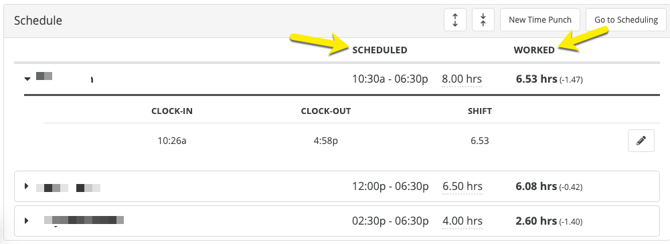
Quick Tip: Most admin users compare the scheduled vs. worked hours as a quick guide to review for issues.
-
-
Once you have entered the correct time punch, you will need to add a note to describe what the issue was as to why the employee was unable to clock in/out that day. Click submit and you will see that the new/existing time punch has been added/edited.
Method D: From the Zignyl Report
-
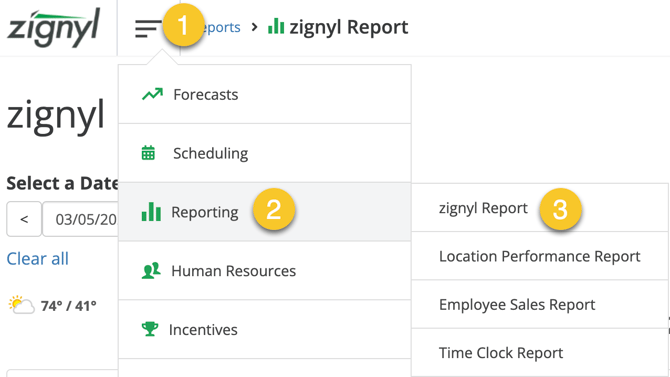
Navigate to Reports > Zignyl Report or click this link.
-
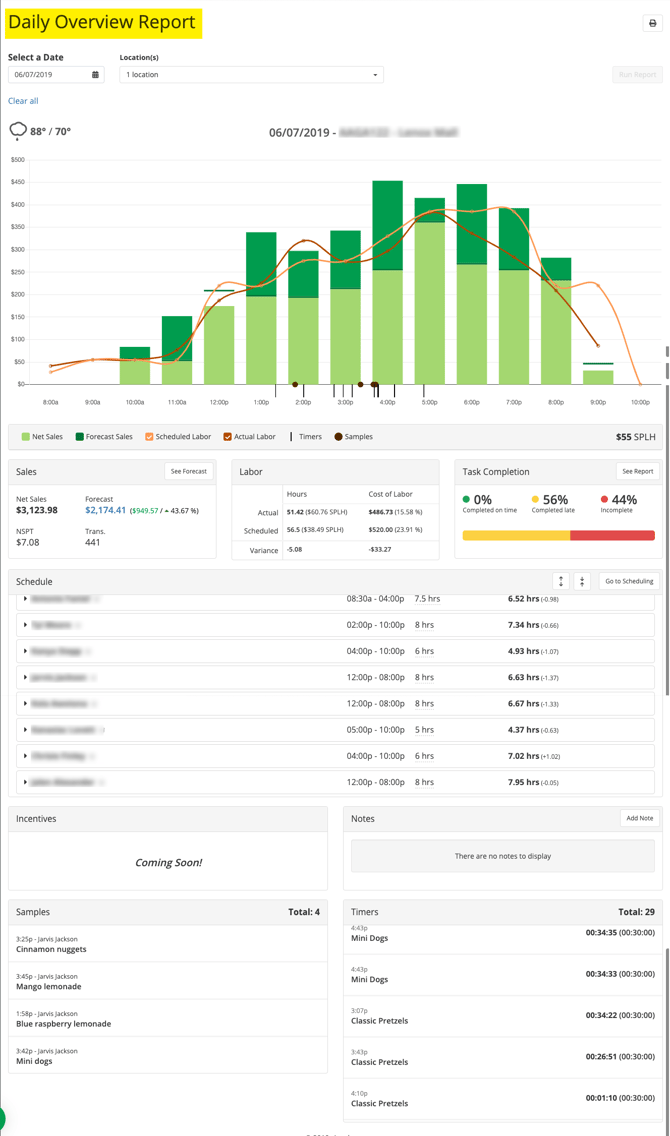
Select the pertinent Date and Location(s).
-
Scroll down to the section named Schedule.
-
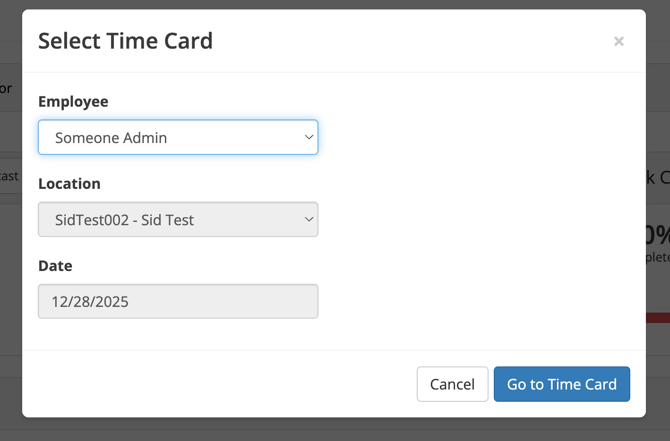
Click New Time Punch as shown in the screenshot below:
-
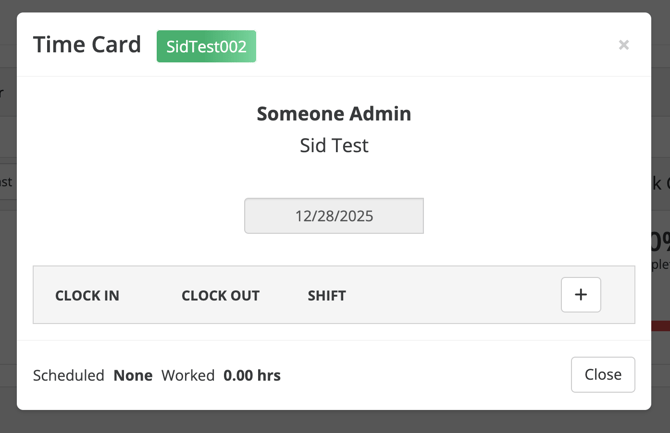
Edit the Employee, Location, and Date as needed.
-
Complete the Time Card as shown, in the same manner as the other methods of editing time:
-
Save and click Close.

Archiving & Deleting Punches
If a punch was created by mistake (e.g., accidental double clock-in):
-
Locate the punch using any method above.
-
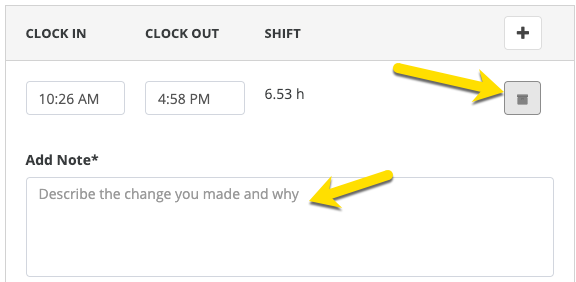
Click the Pencil Icon.
-
In the pop-up, click the Archive button.
-
There will also be a text field for you to document any notes or context.
-
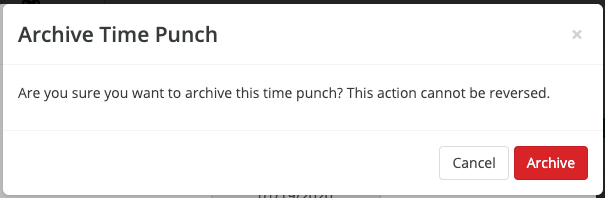
Warning: A confirmation screen will appear. Click the red Archive button to confirm.
-
Note: Archived punches are removed from payroll calculations but saved in the system history for audit purposes.
-
Managing Time Off Requests
Employees request time off via the Zignyl Team App. Managers approve or deny these requests to update the schedule availability.
The Approval Queue (Recommended)
-
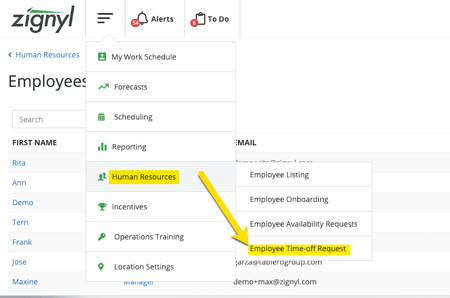
Go to Human Resources.
-
Click Manage Time Off Requests to open the queue.
-
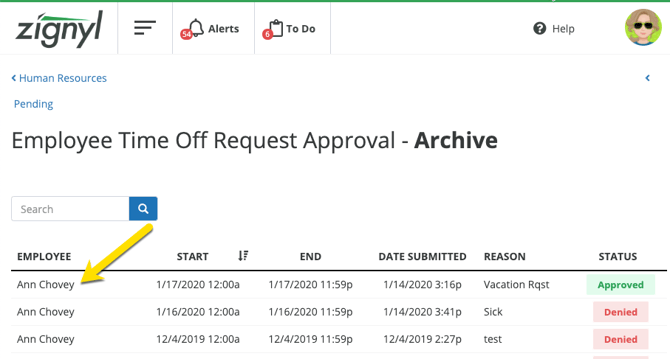
Filter Views: Use the tabs to see:
-
Pending: Requests waiting for action.
-
Approved/Denied: Past decisions.
-
Cancelled: Requests withdrawn by the employee.
-
History: A full log of all past requests.
-
-
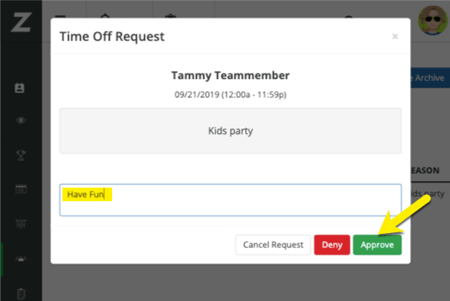
Action: Click a pending request to view the details. Enter a manager note (optional but recommended for denials) and click Approve or Deny.
-
Result: Approved requests automatically place a block on the Schedule, preventing you from accidentally scheduling them.
-
-

Manual Entry
If an employee cannot use the app, a Manager can enter time off for them:
-
Go to the Employee Profile (Full Profile).
-
Click Add Time Off.
-
Select the Start Date and End Date.
-
Enter a reason and click Submit.
Visual Indicators in Scheduling
When building a schedule, you will see icons on the employee's row indicating their status:
-
Yellow Caution: Pending request (needs approval).
-
Green Caution: Approved request (do not schedule).
-
-
Pro-Tip: You can click these icons directly inside the Scheduler to approve/deny the request without leaving the page.
Red Caution: Denied request (employee is available to work).
-