
Getting Started
Using the Zignyl Clipboard on the iPad
Before you begin, please note that you will need to purchase or obtain your own Apple iPad (iPadOS 16 or newer) prior to setup. Zignyl does not provide tablets; our platform is designed for customers to bring their own compatible device to keep costs low.
Once you have your iPad ready, follow these steps to get started:
Step 1: Get the App
To get started, you'll need a stable internet connection and an iPad running iPadOS 16 or newer.
-
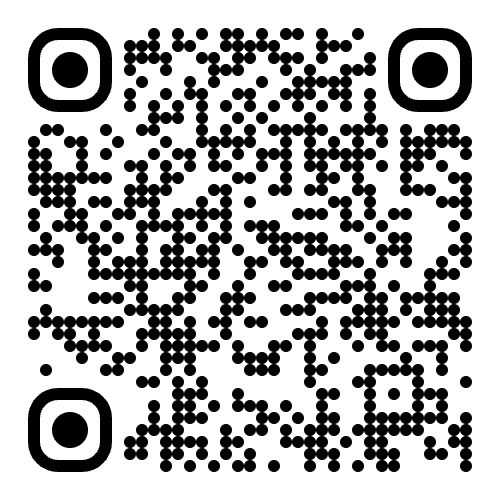
Download the "Zigny Clipboard" app from the Apple App Store. You can use this QR code or click this link. (CRITICAL WARNING: PLEASE DOWNLOAD THE CLIPBOARD APP, NOT THE ZIGNYL TEAM APP IN THE IOS APP STORE! THESE ARE TWO SEPARATE APPS WITH SEPARATE LOGIN METHODS!)
-
Step 2: Configure Your iPad Settings
For the best performance, please ensure these settings are configured:
-
Background App Refresh: On
-
Display and Brightness - Auto-Lock: Never
Step 3: First-Time Login
Your tablet is designed for a persistent, one-time login.
-
Open the Zignyl Clipboard app on your home screen.
-
Log in using your provided credentials (Store Name, Location ID, and Password). You can find this information on your web dashboard at app.zignyl.com/locations/index.
-
Please do not log out. Logging out will require you to go through the full reauthorization process again.
Best Practices for Daily Use
To ensure a reliable and secure experience, please follow these guidelines:
-
Maintain Connectivity: This app relies on a persistent data stream. To prevent service interruptions, ensure the tablet is never disconnected from the internet or turned off outside of required software updates.
-
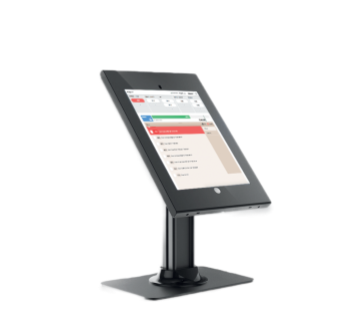
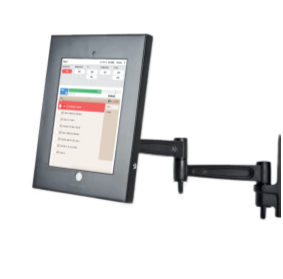
Protect Your Device: For security and ease of use, we highly recommend securing the tablet physically with a tablet mount.
-
Keep It Secure: This app contains sensitive business and team member information. Please do not leave the tablet unattended during or outside of business hours.
-
No Unsanctioned Changes: For security and performance, please do not change the login credentials for this device.
-
We highly recommend using a counter or wall mount for your tablet (like this) as shown below:
Please watch this real life demonstration to see the install and login process in action below!
Using the Clipboard
Once logged in, the Zignyl Clipboard serves as the central hub for your store's operations.
The Dashboard
-
Sales Forecast: View real-time sales against your goal. The progress bar helps the team track incentive targets.
-
Manager Ticker: Check the scrolling text at the top of the screen for important daily memos.

Timers
-
Timers on your Clipboard are a great feature we have that allows you to set a countdown timer and change their name, length, and alert sound.
-
You can use this on everything from product freshness tracking to routine daily tasks that are time sensitive.
-
You can run up to 4 timers at once; the one ending soonest will always appear at the top.
-
To Edit: Click the Zignyl logo (top left) > Timer Settings.

Tasks & Schedule
-
Tasks Tab: View and check off daily operational tasks.
-
Schedule Tab: See who is working now, who is coming in later, and view completed shifts.

Time Clock
-
Clock In/Out: Staff can clock in using their personal PIN.
-
Manual Override: If authorized, a manager can click an employee's name to add a missed punch manually.

Notes
On the Clipboard, you can use the Notes tab to log samples, add employee file notes, or leave location updates. This is also the perfect place to record daily operational context that might impact your business, such as:
-
Weather conditions (e.g., snowstorms, heavy rain)
-
Schedule changes (e.g., opening late, closing early)
-
Special events (e.g., local parades, surprise catering orders)
Note on Forecasting: Notes entered here will be saved and visible on the Zignyl Report when you run forecasts for the same date next year, providing valuable context for past sales trends!
To add a note:
-
Navigate to the Notes tab.
-
Tap Add Note and enter your PIN.
-
Type your message and tap SAVE.

Reports
-
Get a snapshot of daily performance by tapping the Reports tab.
-
Net Sales: Total sales vs. projection.
-
Labor: Total hours used and Sales Per Labor Hour (SPLH).
-
Accuracy: Scores for Forecast, Schedule, and Labor accuracy.
