Getting Started
Using the Zignyl Clipboard on the iPad
Device Requirements:
Zignyl Clipboard runs on your own Apple iPad — we don't provide one in order to keep costs low.
-
iPad model: iPad (6th generation, 2018) or newer. This includes any iPad, iPad Air, iPad mini, or iPad Pro released in 2018 or later.
-
Storage: 32 GB minimum / 64 GB or more recommended
-
Software: iPadOS 16 or newer
-
Connection: Stable Wi-Fi or cellular internet
Why two storage numbers? 32 GB is the floor, but usable space is always less than the number on the box — iPadOS itself, system data, caches, and background app data all take a bite before you've installed anything. On older or lower-RAM models especially, a 32 GB device can feel tight or sluggish once the Zignyl app, browser caches, and normal daily use are factored in. If you're buying a device specifically for this, or your team also uses the tablet for anything beyond Zignyl (browsing, other apps), go with 64 GB - it gives real headroom and avoids performance issues down the line.
Why two requirements instead of one (age + OS)? Some very old iPads can technically reach iPadOS 16 but are no longer receiving security updates and may struggle to run apps reliably day-to-day. That's why we require both a 2018-or-newer device and iPadOS 16 - meeting only one isn't enough.
Not sure if your iPad qualifies? Check it in two steps, right on the device:
-
Go to Settings → General → About. This shows your exact model name and storage capacity.
-
Go to Settings → General → Software Update. This shows the newest iPadOS your device can run — if it offers iPadOS 16 or later, you're good to go on software.
If your iPad was purchased new any time in 2018 or after, it meets the age requirement. Just confirm the OS and storage using the steps above.
If Software Update caps out below iPadOS 16, that iPad can't run Zignyl Clipboard — no update will change that, since it's a hardware limit, not something you can fix. This doesn't damage the iPad in any way; it simply means the App Store won't allow the install on that particular device.
Once you have your iPad ready, follow these steps to get started:
Step 1: Get the App
To get started after ensuring you meet the above requirements, follow the below instructions:
-
Download the "Zigy Clipboard" app from the Apple App Store. You can use this QR code or click this link.
-
Step 2: Configure Your iPad Settings
For the best performance, please ensure these settings are configured:
-
Background App Refresh: On
-
Display and Brightness - Auto-Lock: Never
Step 3: First-Time Login
Your tablet is designed for a persistent, one-time login.
-
Open the Zignyl Clipboard app on your home screen.
-
Log in using your provided credentials (Store Name, Location ID, and Password). You can find this information on your web dashboard at app.zignyl.com/locations/index.
-
Please do not log out. Logging out will require you to go through the full reauthorization process again.
Best Practices for Daily Use
To ensure a reliable and secure experience, please follow these guidelines:
-
Maintain Connectivity: This app relies on a persistent data stream. To prevent service interruptions, ensure the tablet is never disconnected from the internet or turned off outside of required software updates.
-
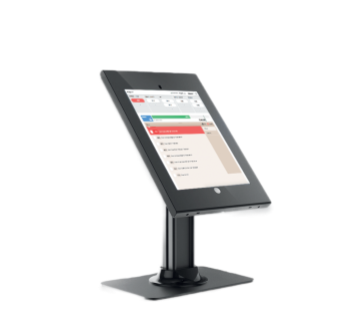
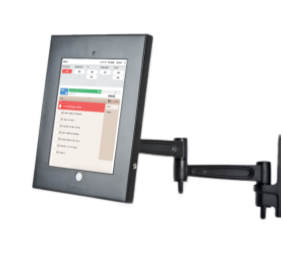
Protect Your Device: For security and ease of use, we highly recommend securing the tablet physically with a tablet mount.
-
Keep It Secure: This app contains sensitive business and team member information. Please do not leave the tablet unattended during or outside of business hours.
-
No Unsanctioned Changes: For security and performance, please do not change the login credentials for this device.
-
We highly recommend using a counter or wall mount for your tablet (like this) as shown below:
Please watch this real life demonstration to see the install and login process in action below!
Using the Clipboard
Once logged in, the Zignyl Clipboard serves as the central hub for your store's operations.
The Dashboard
-
Sales Forecast: View real-time sales against your goal. The progress bar helps the team track incentive targets.
-
Manager Ticker: Check the scrolling text at the top of the screen for important daily memos.

Timers
-
Timers on your Clipboard are a great feature we have that allows you to set a countdown timer and change their name, length, and alert sound.
-
You can use this on everything from product freshness tracking to routine daily tasks that are time sensitive.
-
You can run up to 4 timers at once; the one ending soonest will always appear at the top.
-
To Edit: Click the Zignyl logo (top left) > Timer Settings.

Tasks & Schedule
-
Tasks Tab: View and check off daily operational tasks.
-
Schedule Tab: See who is working now, who is coming in later, and view completed shifts.
Time Clock
-
Clock In/Out: Staff can clock in using their personal PIN.
-
Manual Override: If authorized, a manager can click an employee's name to add a missed punch manually.

Notes
-
Use the Notes tab to log samples, add employee file notes, or leave location updates.
-
Navigate to the Notes tab.
-
Tap Add Note and enter your PIN.
-
Type your message and tap SAVE.

Reports
-
Get a snapshot of daily performance by tapping the Reports tab.
-
Net Sales: Total sales vs. projection.
-
Labor: Total hours used and Sales Per Labor Hour (SPLH).
-
Accuracy: Scores for Forecast, Schedule, and Labor accuracy.