
FAQs Scheduling
This article has frequently asked questions in regards to scheduling:
1. I have an employee who is not showing on my schedule, what should I do?
First check to make sure the employee is assigned to your location. To check the locations the employee is assigned to, select the Human Resources module on the Dashboard. Next select the Manage Employees tab. Then select the employees profile and scroll down to the Locations link.
Click on Assign to a new location, choose from drop down and click save.


The employee is now assigned to your location.
If you cannot find the employees account, check if the employee has been archived by check marking the Show archived employees button on your employee listing in the Human Resources module. If needed, you can then unarchive the employee at the bottom of their profile.
2. How do I input schedule availability for employees?
The employees can add their schedule availability themselves, they can learn how to do that here. If the employee is unable to do this, the manager can enter the changes to their schedule availability. The manager will need to access the zignyl dashboard and select the Human Resources module. Next select the employees name and then scroll down to availability.
Click on Add New Availability.
-
Choose the week that the new availability will begin.
-
Choose All day if employee is available at any time that day.
-
If the employee is only available for a limited time on a day, click the day and then enter the hours available.
-
If an employee is not available on a specific day, do not click on the day. It will show Not Available.
-
Then click Submit.

3. I have an employee that schedule changes every week due to another job
The employees have access to change their availability on their Employee Profile. First they will log in to their employee profile, and select the My Information tab. After the profile loads scroll down to the Availability tab. Next select the tab to Request New Availability. They will then make changes and press the submit button. The new availability requests are then submitted to the assigned manager for approval.
Here is an excerpt from the Employee Dashboard article to help:
"Scroll down to find your current availability and tap Add New Availability. Then choose when you would like your new availability to start and add the days and times.

Finally, click Submit. Your manager gets notified automatically about your availability change request, and you get notified when it's been approved or denied."
4. Why are employees assigned to your location not showing on schedule?
From the Managers Dashboard select Human Resources. Next select Manage Employees. Then select the employee not listed on the schedule. From the Employee profile scroll down to the Locations tab and check the Show on Schedule. Repeat this process for each employee assigned to this location. The employee should now show on the schedule.

5. How to schedule an employee that has not set up their schedule availability?
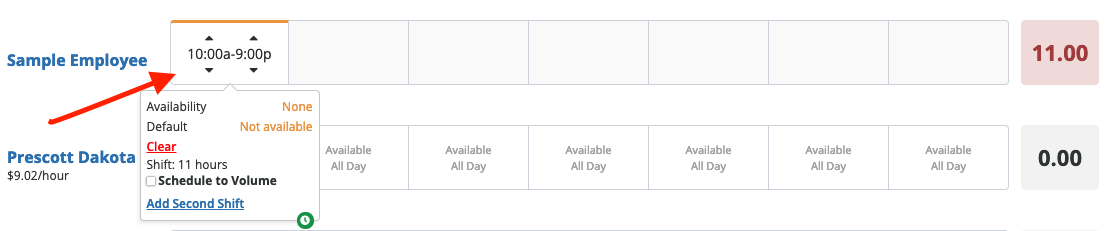
If the schedule availability is not entered, you can click on the boxes under each day and then click Schedule Anyway. The store hours will show in the box and then you will need to adjust the time to the shift you want.

6. The schedule for the upcoming week is not available where do I find the future schedules?
As a Manager, you will have to ask your Area Director or Company Admin for help on this. They will have to have access to Location Setting/Admin Settings. The Area Director can then select Scheduling and set the number of weeks in advance that the schedule will be available and click the save button.

7. How To Make Changes To An Already Submitted Schedule
From the Managers Dashboard select Scheduling. Next select the week the adjustment is needed. You are now able to make changes to the selected week.
Be sure to click the Submit Revisions to make those changes go live.

You can review how to Manage Schedules here.
8. The availability I enter for employees is not saving
First thing is to confirm that you are pressing the submit button after entering the new availability.
Next depending on the users permissions (Team member vs Manager) the schedule availability change must be approved by the Manager. The change will only reflect on the schedule after approval. The next thing to check is to see if there are arrows indicating there is another schedule availability to view. If after checking all of the previous steps the change is still not saving, please contact zignyl support at 901-248-4745 or email at support@zignyl.com for assistance.

10. Can I schedule an employee outside of their availability?
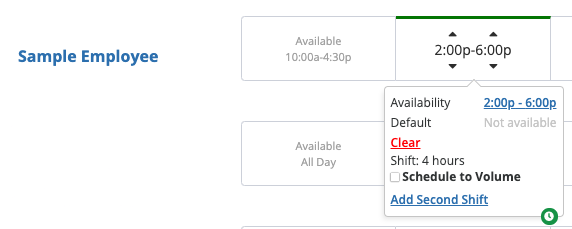
Yes employees can be scheduled outside of their availability. After confirming that they do want to work additional hours click on the box and select the arrows to adjust the schedule.
11. How are days off shown on the schedule?
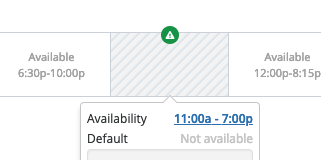
After the off day is approved there will be a green triangle at the top of the box with diagonal lines noting the employee is off.
For more information on how to Manage Time Off Requests, click here.
12. Why am I unable to make schedule changes from the Zignyl Clipboard/Tablet?
Unfortunately that is not an option. To make schedule changes a manager has to sign in to their Zignyl Core Dashboard to make any changes.
13. How to schedule one employee at multiple locations?


