
Where did we leave off? What now?
Here, we assume you've finished the following:
-
You've connected your POS with Zignyl
-
You've purchased an iPad and installed the Zignyl Clipboard
-
You've logged in to the Zignyl Core Dashboard
Now, this article will guide you on the following steps:
-
Add your team to Zignyl
-
Invite them to install the mobile app (Zignyl for Teams)
-
Create a forecast
-
Create a schedule
1. Adding team members in the Zignyl Management Portal
In general, the steps for this are to:
-
Gather your team member's information (name, email address, phone #, POS PIN, availability, pay rate, pertinent details)
-
Add them as shown below in the picture
-
Send invite to their email
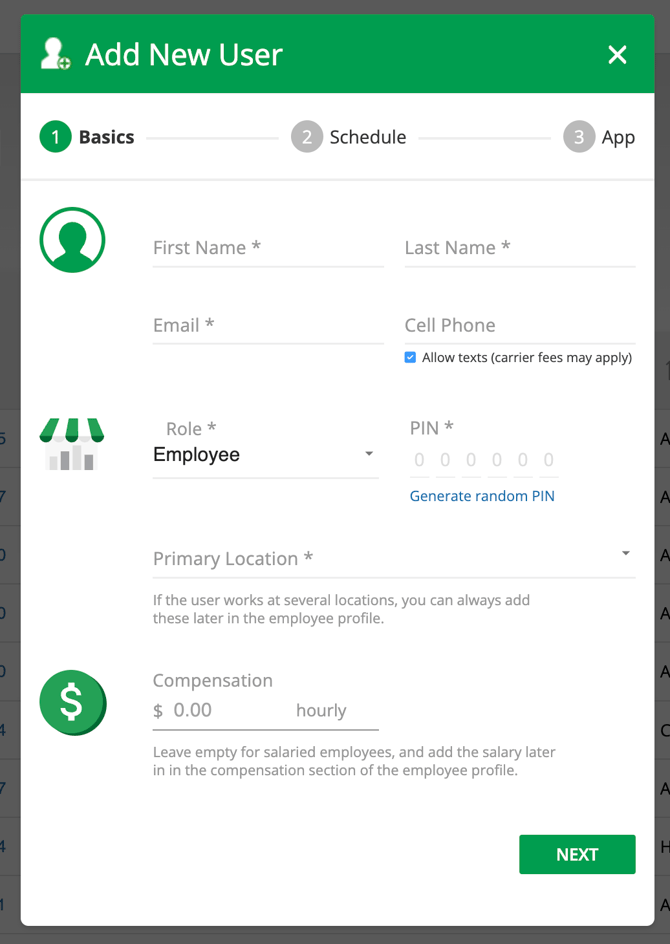
To get started, once you’re logged into the Zignyl Core Dashboard, head over to the Human Resources tab and select Employee Listing. Here, click the blue Add User button. You’ll be prompted to enter basic details about your team member such as their name (first and last), select their appropriate role or permission level from the dropdown, and assign them to a specific location. Assigning a location is important, as it connects the employee’s activities in Zignyl, including tracking NSPT, transactions, and related reports.
After entering their details, click “Next” to specify their availability if needed. If you need to edit or add information later, you can always revisit the employee in your listing, click the pencil (edit) icon, and make changes before saving.
2. Inviting team members to Zignyl for Teams
As discussed above, the team member experience is absolutely critical to success. After you’ve set up a user profile in the Core Dashboard, simply check the box labeled “Invite to the Team App” during final step of the employee profile creation phase. This will trigger an email invite to your team member, allowing them to download the Zignyl app from the App Store or Google Play Store and log in securely with their email and a temporary password.
After adding a team member in the Zignyl Core Dashboard, simply check the box labeled “Invite to the Team App” on their profile. This will automatically send them an invitation email, prompting them to download the Zignyl app on their device. For iOS, they can use this App Store link. For Android, direct them to the Google Play Store here (search "Zignyl" if needed).
With the mobile app, your team can view their schedules, request time off, update their availability, and keep their personal information up to date - from anywhere! They’ll start by opening the invite email and following the provided link. After logging in, they’ll have access to their dashboard, tasks, forms, and direct communication tools within Zignyl. All updates sync automatically with your Core Dashboard, making things seamless for everyone.
If a team member ever misses the invite email, you can resend it anytime by editing their account and re-checking “Invite to the Team App.” Don’t forget to encourage them to complete all onboarding tasks listed in their app’s “TO DOs” to ensure a smooth start!
3. Making your first forecast in the Zignyl Management Portal
In general, the steps for this are to:
-
Create a realistic, accurate foundation that sets you up for success
-
Speak to your Zignyl customer success team if you have previous sales data
-
Use this to raise the bar and progressively plan your growth
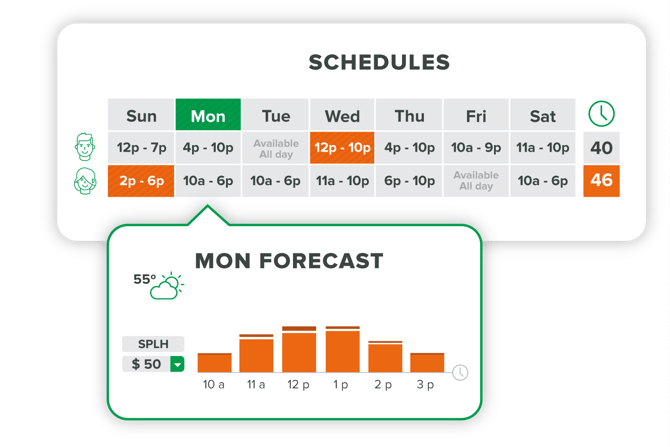
Forecasting in Zignyl is designed to make managing your locations truly data-driven and stress-free. Zignyl automatically pulls historic sales data straight from your POS, so you don’t have to fuss with spreadsheets. When you’re ready to build your forecast, select the historical period you want to compare (like the same week last year) and adjust for current trends. Zignyl creates precise hourly forecasts, factoring in even things like weather, so you can quickly fine-tune for special events or unexpected changes.
What makes it powerful is the direct integration with scheduling. As you create your schedules, Zignyl displays your hourly sales forecast right below the scheduler. This lets you see exactly how many employees you’ll need each hour, optimizing your labor so you’re never under or over-staffed. Suggested labor targets, visual comparisons, and manual adjustments keep your operations nimble. Managers and owners can monitor forecasts, set goals, and receive notifications or deadlines to ensure everything stays on track!
Want a detailed guide? For even more insight, check out the official forecasting article here or in your owner's dashboard.
4. Making your first schedule in the Zignyl Management Portal:
In general, the steps for this are to:
-
Use the forecasting information to plan out how you schedule to volume and put your aces in places
-
Plan out which days and hours need more coverage
-
When you're done, send schedules to the entire team, as well as adjust if needed through your phone or desktop at app.zignyl.com
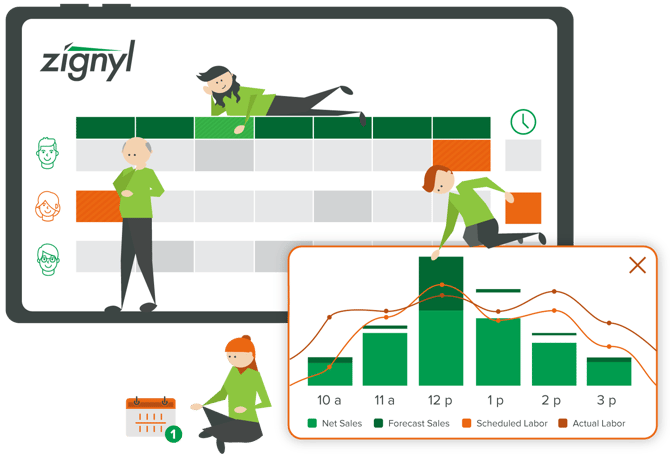
Scheduling in Zignyl makes managing employee shifts straightforward and flexible. To get started, open the Scheduling module in the Core Dashboard. Select the location you want to manage, and choose the week you’d like to schedule. For each day, you’ll see employees’ availability (gray text means available, black text means scheduled, and no text means unavailable). You can assign shifts with just a click, and if you try to schedule an employee during their unavailable time, Zignyl will prompt you with a warning.
You can also set default schedules, define minimum and maximum hours, and use "Schedule to Volume" - a feature that lets you match shifts to your store’s needs in real time. Don’t forget to publish your schedule so your team gets up-to-date access.
For more details and step-by-step guidance, check out the full scheduling article right here.
We hope you enjoyed part 2 of our walkthrough!