
Throughout the course of using Zignyl at the store, you may encounter issues with operating your iPad on the Zignyl platform. If your Zignyl Clipboard is not connecting to the internet, tasks are not syncing, or the screen is unresponsive, please read below.
Restarting the Zignyl Clipboard App
For iPads with a Home Button (e.g., 6th Gen - 9th Gen):
-
Double-click the Home button quickly.
-
You will see a row of app previews. Swipe right or left to find Zignyl Clipboard.
-
Swipe UP on the Zignyl Clipboard preview to flick it off the screen.
-
Press the Home button to return to the dashboard and reopen the app.
For Newer iPads (No Home Button):
-
Swipe up from the bottom edge of the screen and pause in the center.
-
Swipe right or left to find the Zignyl Clipboard preview.
-
Swipe UP on the preview to close it.
-
Tap the background to return to the dashboard and reopen the app.
Forgot/Reset Clipboard Password
You may, over the course of operations, get logged out and have to log back into the Zignyl Clipboard app. Please note that this login and password information is stored under Location Settings in the Zignyl Management Portal. This is for users designated as Managers or above.
-
Navigate to app.zignyl.com and in the dropdown, select locations, or visit this link.
-
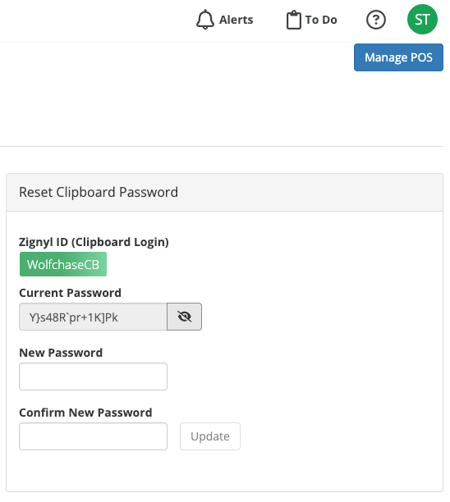
On the right of the screen, please see the Reset Clipboard Password panel shown below:
-
Write down/copy the current password, or reset to a new password, and confirm by clicking Update.
-
Login on the iPad Clipboard app using the Zignyl ID and the current password. Please note that this is case sensitive.
Troubleshooting Internet Connectivity
The Zignyl Clipboard requires a constant internet connection. A common issue occurs when connecting to Guest or Public Wi-Fi networks (like at a hotel or coffee shop) that require a "Log In" splash page (a Captive Portal).
-
The Symptom: Your iPad shows the Wi-Fi icon, but the Zignyl app says "No Connection."
-
The Fix:
-
Open the Safari app on the iPad.
-
Try to visit a new website (like
cnn.com). -
If you are redirected to a "Log In" or "Accept Terms" page, you must complete that login in Safari first.
-
Once Safari can load a webpage, reopen the Zignyl Clipboard app.
-
App-Specific Connection Issues (Whitelisting)
If Safari loads websites perfectly, but the Zignyl Clipboard app still cannot connect or log in, your store's network might be blocking the app.
-
The Check: Can you visit
google.comin Safari? If Yes, but the Zignyl App fails, this is likely a Firewall issue. -
The Fix: Contact your Company Admin or IT Department. Ask them to "Whitelist" the Zignyl Clipboard app traffic on the store's router/firewall to ensure it isn't being blocked by security filters.
Restarting the iPad (Power Cycle)
If force closing the app does not work, restart the device.
-
Press and hold the top button and either volume button until the power off slider appears.
-
Drag the slider, then wait 30 seconds for your device to turn off.
-
To turn your device back on, press and hold the top button until you see the Apple logo.
Check For App Updates
To get the best experience with the Zignyl platform, please ensure that you are running the latest version of the app.
-
On the desktop of the iPad open the App Store.
-
Tap your profile icon at the top of the screen.
-
Scroll to see pending updates.
-
If Zignyl Clipboard is listed, tap Update.
In the top left corner of the Zignyl Clipboard app, you will see the updated version. Conversely, an orange bar in the top left corner represents that there is a newer version of the app available (e.g., v1.5.3 (9)). You may directly access this App Store app via this link as well.
Refresh Cycles and Miscellaneous Information
Please note the following as you use the Zignyl Clipboard app:
-
Depending on your POS type, your sales may sync at a 15 minute, hourly, or daily interval.
-
If your store is not connected to the POS, you will not show sales or labor information. The Report sub-tab on the app window will be blank without an active connection to display sales $ data.
-
If you are not using Zignyl for time-keeping and instead access it through a different POS or scheduling platform, you will NOT use Zignyl to clock in or out.
-
Tasks on the tablet refresh nightly; so updated location-level tasks will not display immediately and instead, will show up the next morning of operations.
-
You CANNOT reset an employee PIN on the iPad; this must be done through the Zignyl Management Platform. If a user forgets their PIN, they must access or reset the 4 or 6 digit PIN separately.
-
Waste items must be added via the Location Settings -> Admin Settings before they will show up accordingly on the tablet. Otherwise, No Items will be displayed on both Today's Waste and the Waste Log on the app window.
-
If your store is closed for the day/week/month and you have set it accordingly on the Management Portal, your Clipboard app will not function correctly and may display a Failed to Load Location Data error. Please ensure that your store hours are live in the Work Week Settings of your Management Portal via app.zignyl.com.